District and Site Dashboards: Access and Configure
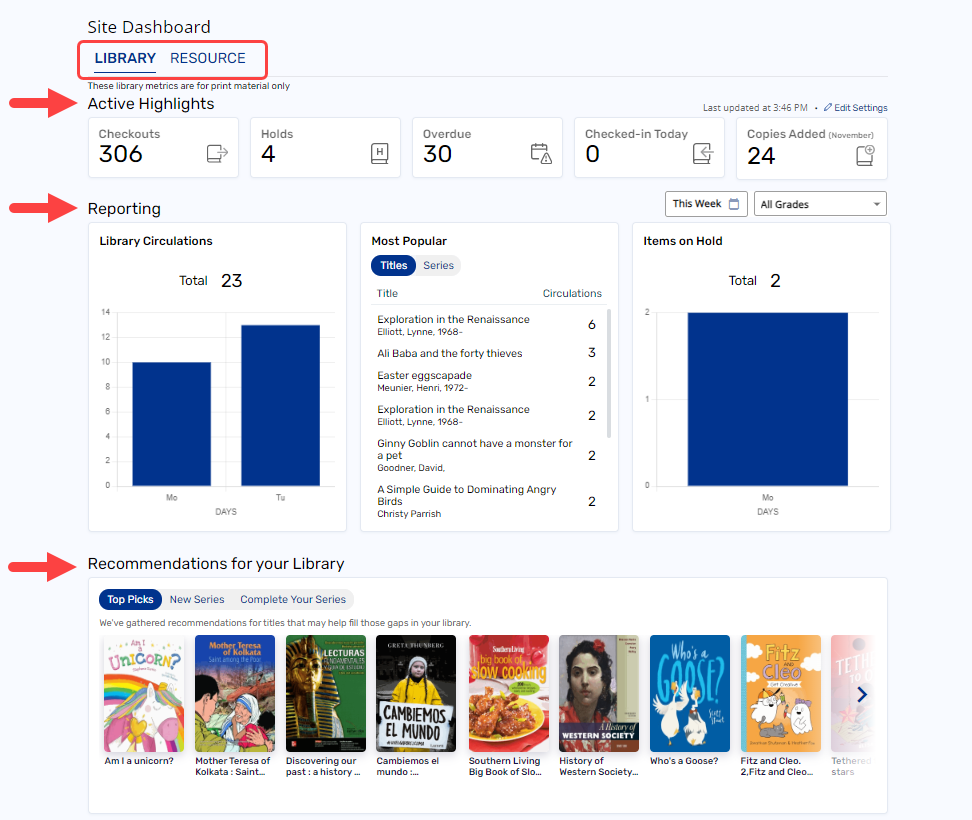
The District and Site Dashboards provide a graphical, at-a-glance view of various library and resource data, as well as book recommendations for your library. You can edit the types of data you see at anytime.
|
Dashboard widgets appear in the following categories: Active Highlights, Reporting, and Recommendations.
If you have Resource Manager and Library Manager and have the appropriate permissions, use the tabs to switch between products.
Access the Dashboards
- Select
 > District Dashboard or Site Dashboard.
Note: To access a Site Dashboard as a district user, first navigate to the site.
- Click the Library or Resource tab (if applicable).
Configure Dashboard settings
- Select > District Dashboard or Site Dashboard.
- Click the Library or Resource tab (if applicable).
- In the top-right corner of the page, click Edit Settings.
- Select to show or hide the Active Highlights, Reporting, and Recommendations for your Library widgets on the Dashboard.
Note: The Recommendations for your Library widget is only accessible from the Site Dashboard. - Click Save Configuration.