EasyScan Corded Scanner
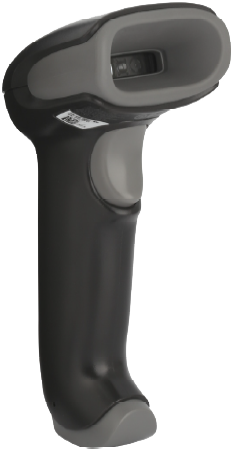
Your Destiny EasyScan Corded Scanner is a highly accurate 1D/2D scanning solution. Pre-loaded with Follett Software firmware, this device scans Follett Classic barcodes and other popular Destiny barcodes without any special setup.
Installation
- Carefully insert the modular connector into the bottom of the Destiny EasyScan until you feel it click in place (Figure 1). To remove the cable, insert a paper clip into the cable release hole. (Figure 2).
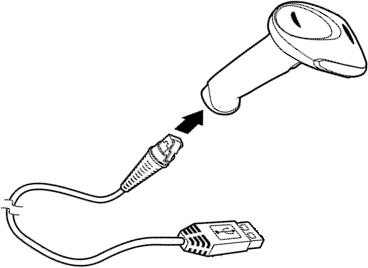
Figure 1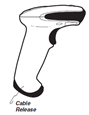
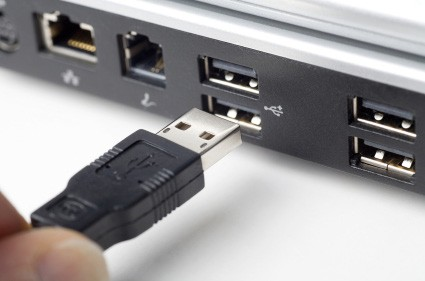
Figure 2Note: The modular connector cable is specifically designed for the Destiny EasyScan and can only be replaced by a cable designed for this model. - Locate the USB port on the back of your workstation, and insert the USB connector. Make sure that the connector is fully seated in the port.
- Insert the top of the Destiny EasyScan into the included stand.
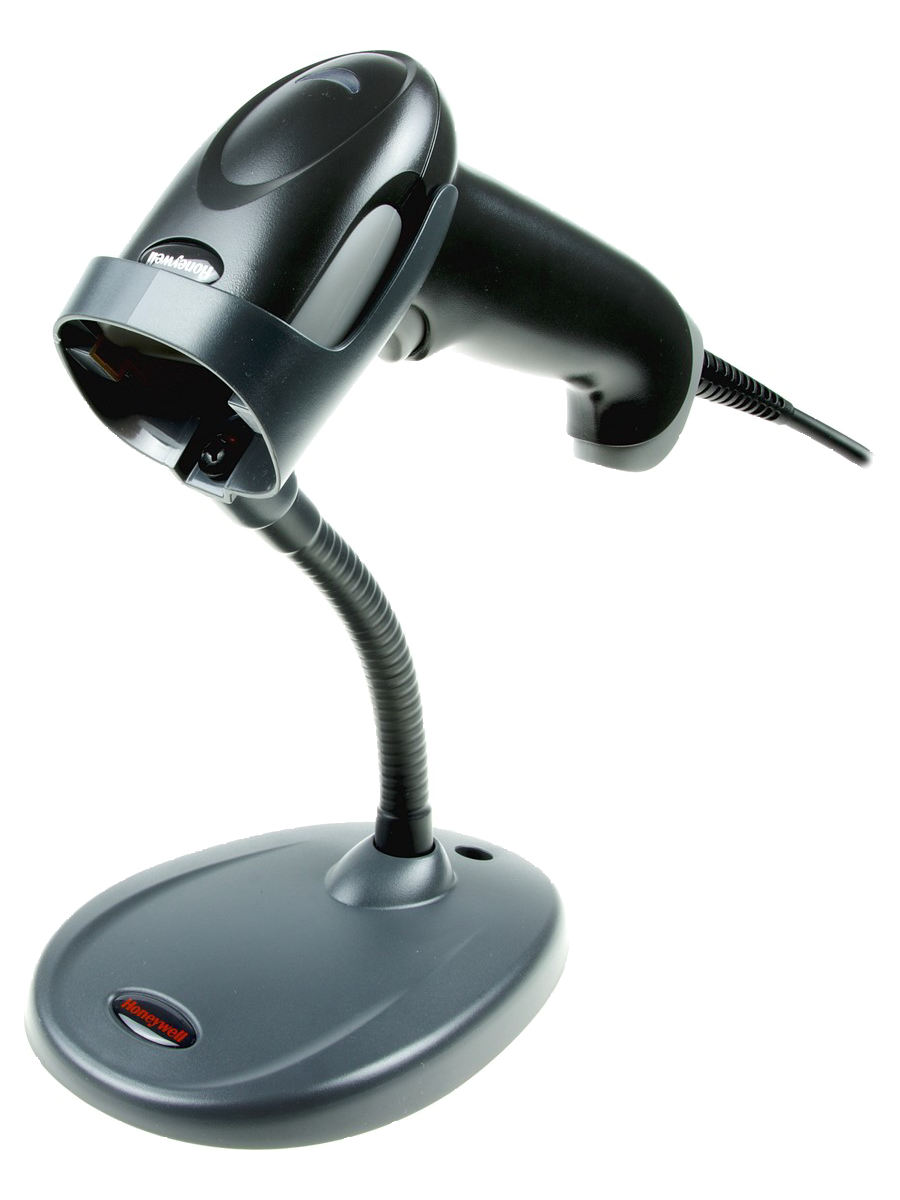
When the EasyScan is inserted into the stand, it automatically enters into presentation mode. A light is activated to indicate it is ready to scan. When the unit detects a barcode, it scans automatically.
-
Test your Destiny EasyScan by using the following procedure:
- On your workstation, launch a text-editing program such as SimpleText or Notepad.
- Scan the test barcode below.
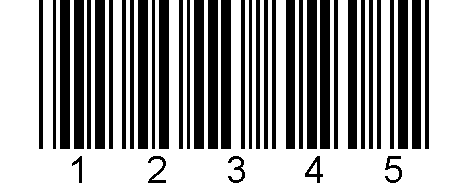
- Check to see if the number 12345 appears in the text editor. If the number does not appear, contact Follett Technical Support at 800.323.3397.
Note: For best results, scan all barcodes from a distance of 7 to 10 inches.
Operational Modes Setup
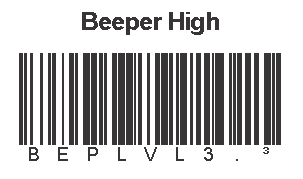
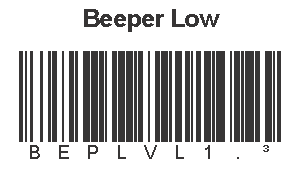
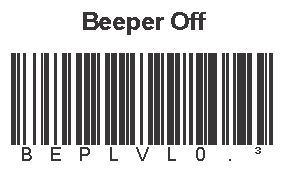
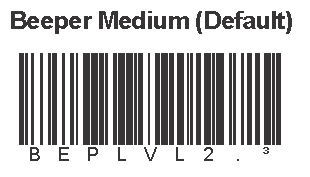
Program your preferred sound level by scanning the appropriate barcode below.
|
|
|
|