Follett Infigo
The Follett Infigo™ lets you easily print circulation and fine receipts. It includes a USB cable and mounting equipment.
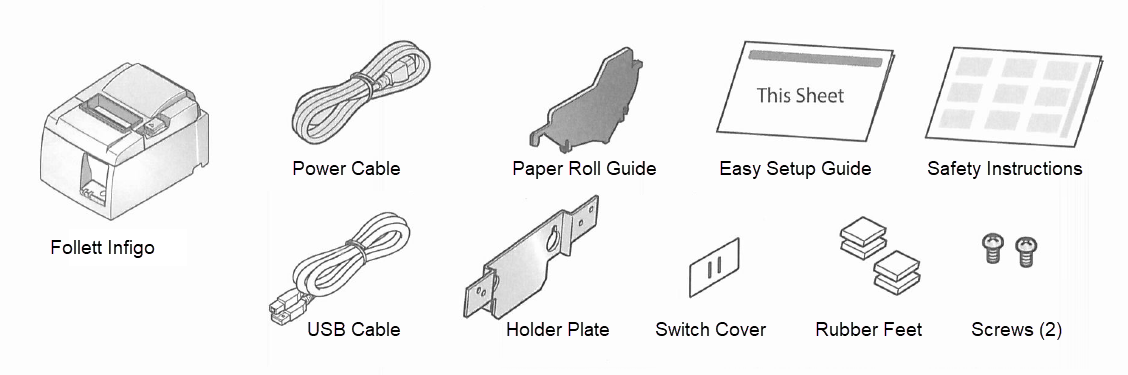
Check the supplied accessories
Set up the Follett Infigo
- Install the Windows driver.
Important: Install the driver before connecting a USB cable. By installing the driver in advance, when a Windows PC/tablet is connected with Follett Infigo, a printer queue is automatically created via plug-and-play, and communication is enabled with the printer. - Download the TSP100 Windows driver "futurePRNT" (at www.star-m.jp/tsp100iii-wsw.html).

Note: The Windows driveris included in futurePRNT. When futurePRNT is used, the printer settings can be configured and an operation test can be performed. - In your Downloads folder, open the file tsp100_V770_Setup.EXE, then click Yes.
- Follow the wizard to install the software. Do not make any changes to the settings.
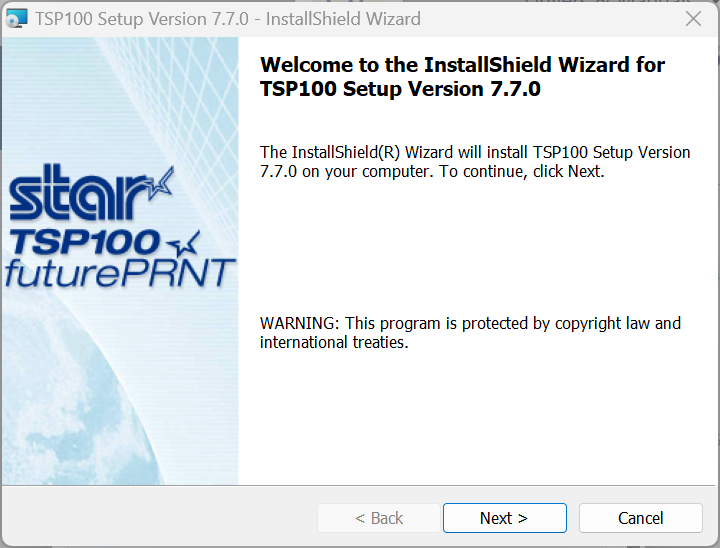
- Download the TSP100 Windows driver "futurePRNT" (at www.star-m.jp/tsp100iii-wsw.html).
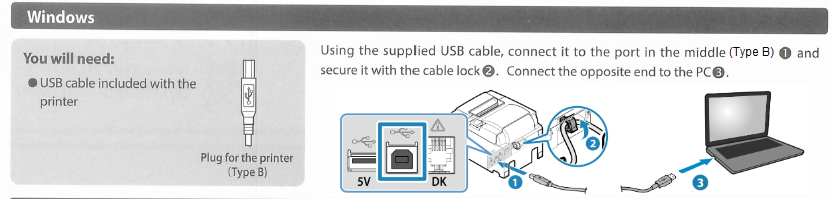
- After the driver is installed, connect a USB cable.
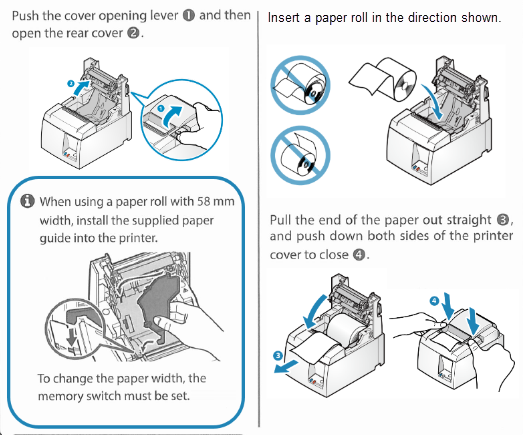
- Insert a paper roll.
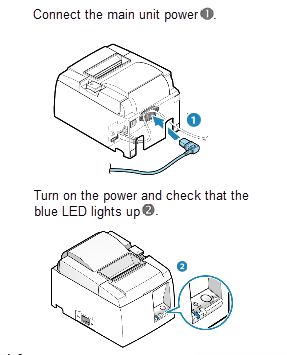
- Turn the Follett Infigo on.
- Restart your device.
This completes the printer setup.
Set up the printer properties in Windows
- Select Start > Settings > Control Panel > Printers and Scanners.
- Locate and right-click Star TSP 100 Cutter (TSP 143).
- To set the Infigo as the default printer, click Set as Default Printer.
- Click Printing Preferences.
- Select the following settings:
Tab Settings Advanced - Set paper size to 72mm x Receipt.
- Click OK.
Layout Select Portrait. Paper/Quality - Select the following:
- Paper Source: FRICTION
- Media: 2 color paper
- Color: Color
- Click Apply.
- Click OK.
Configure Destiny
- Log in to Destiny as a Destiny Admin.
- Select Admin > Site Configuration > Receipts/Refund Notification.
Note: If you do not see Admin > Site Configuration, ask your Destiny or Site Administrator to configure the settings.
- UnderWhen generating current Check Outs/Fines receipts... and When generating Check In receipts..., next to Format, select Follett receipt printer.
Note:If you do not see this option, you may need to upgrade to the current version of Destiny. - Click Save.
To print a test receipt:
- Select Circulation > Checkout.
- Select a patron.
- Click Print Receipt.
- In the printer pop-up, select the following settings:
- Destination: Star TSP 100 Cutter (TSP 143)
- Layout: Portrait
- Color: Color
- Under More Settings, select:
- Paper size: 72mm x Receipt
- Margins: None
Note: You may have to set the margin to Default, then change it back to None after you deselect the Headers and footers checkbox. - Options: Deselect the Headers and footers checkbox.
- Click Print.
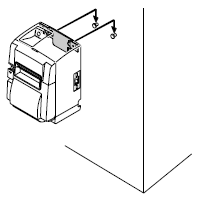
Mount the Infigo vertically
- Hold the Holder plate against the wall (or other vertical surface), and mark the location of the inner set of holes.
- Install the appropriate screws (not included) in the wall, leaving enough space behind the screw heads for the Holder plate.
- Securely attach the Holder plate to the printer with the two screws (included).
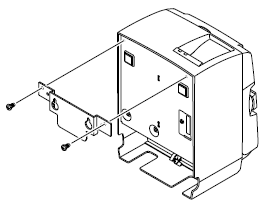
- Position the printer over the screws on the wall, and then slide it downward to set it in place.