View item status (Resource Manager)
You can view information about any item, such as its site, status, condition, or home location. You can also print a replacement barcode label.
| Note: Users need the View resource item status permission. |
|
Important: If your district uses resource groups., you only have access to resources in the group you are assigned. |
To find an item:
- Select Circulation > Item Status.
Note: This is one of a few ways to access Item Status. - In the Find Item field, enter the item's name or barcode.
- Click Go.
- Find the item you want, and then click the link in the Barcode column. The item's details page appears.
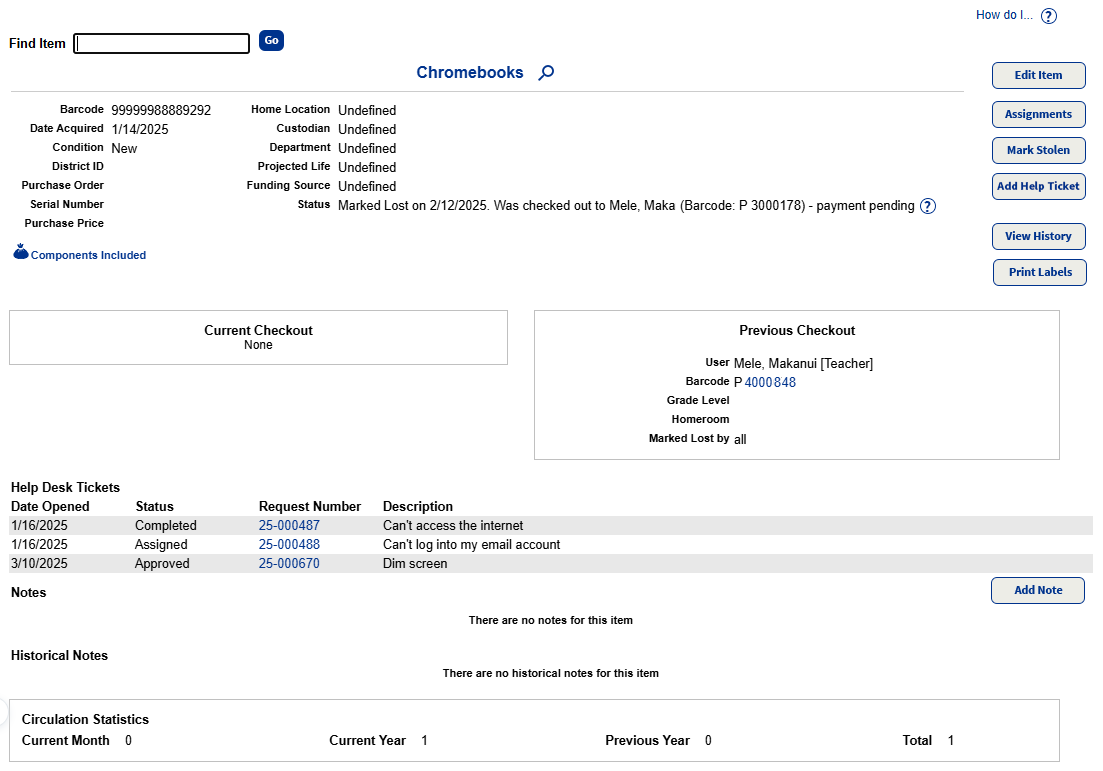
- Use the following table to complete your task:
If you want to… Then… Access resource details Click  next to the item name.
 Edit an item Click Edit Item. Include additional items Click Include Items. Mark an item as lost Click Mark Lost, and then click OK. Mark an item as stolen Click Mark Stolen, and then click OK. Create a new help ticket Click Add Help Ticket.
Note: If your district has enabled Destiny Help Desk, and the resource type of the item is IT/Technology, clicking Add Help Ticket launches the New Help Desk Request page in Help Desk. See Submit a request.
View resource transaction history Click View History. Print a label(s) for a single resource item Click Print Labels. Access components (if available) Click the Components Included link (  ).
).Access a patron's status Click the patron's barcode in either the current or previous checkout section. View a request (in the Help Desk Tickets section)
Note: The Help Desk Tickets section only appears if Destiny Help Desk is enabled for your district and the resource type of the item is IT/Technology.
Click the Request Number link to open the specific request in Destiny Help Desk.
Add a note Click Add Note.