Update digital content (Resource Manager)
Resource description records or item records can include a link for an eTextbook, or digital content, such as instruction manuals or warranties. Associate up to five documents of any file type (except .exe) that are less than 500 MB.
|
Note: If you have a redemption codes XML file that contains a URL, this is done in the item record. |
To add digital content:
|
Note: This is only one of the ways to get to the Update Digital Content page. |
- Select Catalog > Resource Search > Search tab.
- Search for a resource. When you find the one you want, click Details.
- Do one of the following:
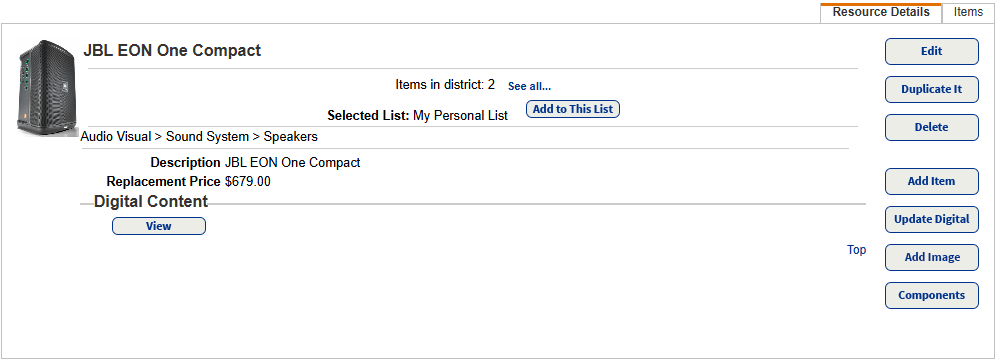
If you want to add digital content to... Then... A resource description record - Click the Resource Details tab.
- Click Update Digital. The Update Digital Content page appears.
An item or media record - Click the Items or Media tab.
- Find the resource you want.
- Click
 . The Update Digital Content page appears.
- Use the following table to complete your task:
If you want to… Then… Add digital content - Click Add New. The Add Digital Content page appears.

- Type a Digital Content Name.
- Select Upload Digital Content or Resource URL from the drop-down.
- If uploading a document, click Browse (or Choose File, depending on your browser), and then navigate to the resource you want to attach to the resource/item.
- If adding a link, enter a Resource URL.
- If patrons have access to My Info, and you want them to see the file or URL, select Allow patron to view in My Info.
- Click Save. The Add Digital Content page appears.
- Click Close.
View a document or URL Click
 . The file opens on a new tab.
Edit digital content - Click
 .
. - Complete the information as needed.
- Click Save.
Delete digital content attached to an item/media - Click
 .
.
- Click Yes on the confirmation message.
- Click Add New. The Add Digital Content page appears.
You can view and edit the resource’s digital content from the Resource Details.
Important: Digital content is stored in your FSC-Destiny\fsc\districtResources\ folder. If you automatically back up your SQL database, it does not include these documents. Follett recommends that you back up your FSC-Destiny\fsc\districtResources\ folder.
|