New booking request
Staff with booking site access can add a booking for patrons throughout the district.
- Select Circulation > Book Items.
- Find the patron, and click Add Booking.
- From the Find drop-down, leave the template tree as Resources or select the applicable template.
Note: In Resource Manager, you can only access the resources you have permission to view.
- From the Where Resource drop-down, select a search option.
- Use the second Where Resource drop-down to select one of the following:
- Starts With: Searches for resources that begin with the letters or words you type. Select this option only when you know the resource’s exact name.
- Contains: Performs a keyword search for one or more words that are part of the Resource Displayable Name. This is the broadest search.
- If available, select the site to search from the in drop-down.
- In the last field, enter your search term, and click Go.
- From the Search Results list, click either the title of the item or Book It.
- In the From [Site Name] drop-down, select if the items are being shipped to the patron's site or picked up by the patron.
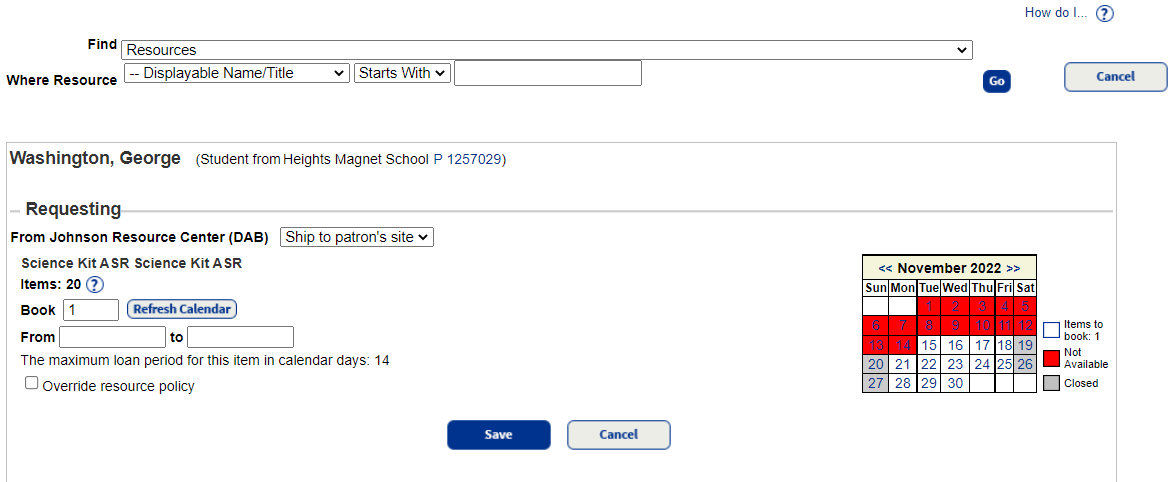
- In the Book field, type the number of items you want, and then click Refresh Calendar.
- In the From fields, type the first date the item is needed or use the calendar on the right to identify when items are available. The to field is automatically populated.
- If the patron needs the item longer than the set loan period, select the Override media policy checkbox and enter the date in the to field.
- Click Save.