Add title records from resource databases
When you rbuyprovide, search the district and resource databases first.
|
Important: Because title records are shared across the district, check for an existing record before you add one. Follow your district's cataloging guidelines when you choose or edit a record. |
About resource databases
Maintaining accurate catalog records is vital for your students and teachers to know which information and resources are available. You can easily access and import thousands of title records from Alliance Plus® and Z-Source databases into Destiny Library Manager.
- ; requires a , and must be enabled by a Destiny Administrator in District Setup.
- ; requires configuration.
Because there may be an existing record in your collection, Alliance Plus Online, or a Z39.50 server could meet your needs or require only minor modifications, Follett recommends that you first search for a record.
Search for and add a title record
- Select Catalog > Add Title > Check Sources tab.
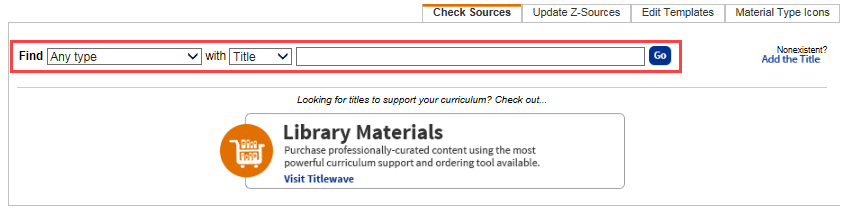
- Use the Find drop-down to select the material type or Any type.
- Use the with drop-down to select Title, Author, Subject, LCCN, ISBN, or ISSN.
Note: Follett recommends you search by ISBN to ensure you are not duplicating records.
- In the third field, type a number or search term.
Notes:
- Use a standard number to find a specific record.
- Make sure to enter the complete number. Standard number searches return only exact matches.
- If you enter an ISBN, Destiny searches for both the 10-digit and the 13-digit form of the ISBN.
For the fastest results for a book in hand, scan the book's ISBN barcode, usually found on the back cover. - If you do not have a standard number, try searching by the title, author or subject. Enter as much of the name as you can.
If a title begins with a single letter that is not a leading article (for example, A is for America), surround the title with quotation marks.
- Click Go.
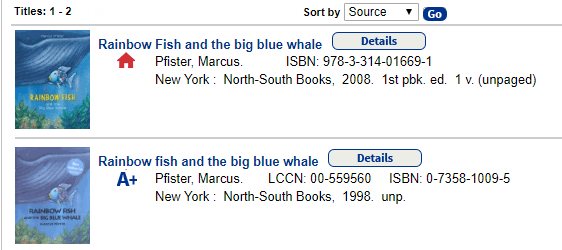
- On the Search Results page, scroll to find the item you searched for. The source of the title record is indicated by the icon next to its title.
 The red schoolhouse indicates the record is already in your
district’s catalog. Choose a district record to avoid duplication. You just need toadd your library’s copies.
The red schoolhouse indicates the record is already in your
district’s catalog. Choose a district record to avoid duplication. You just need toadd your library’s copies. The “A+” indicates the record is in the Alliance Plus database. If
there is not a district title record in the search results, there
might be a title record in the Alliance Plus database.
The “A+” indicates the record is in the Alliance Plus database. If
there is not a district title record in the search results, there
might be a title record in the Alliance Plus database.  The lightning bolt indicates the record is in the Z-Source
database. If there is not a district or Alliance Plus record
available, you can choose to use a Z-Source record. Z-Source
databases are owned by the host libraries, and you must set up
access to them before you can find Z-Source search results.
The lightning bolt indicates the record is in the Z-Source
database. If there is not a district or Alliance Plus record
available, you can choose to use a Z-Source record. Z-Source
databases are owned by the host libraries, and you must set up
access to them before you can find Z-Source search results.
- To retrieve additional records from configured Z-Sources (Z39.50 servers), scroll to the bottom of the page and click Get Z-Results.lightning bolt icon
Note: If you need to configure your preferred Z39.50 servers, open the Update Z-Sources tab. - To view a title's details and save the title, if you choose, click Details or the title's name.
Note: To review the MARC record details, from the Actions menu, click MARC View. You can edit the title after you save it.
- To save the title to your catalog, from the Actions menu, click Save Title.
- To make any changes to the title record:
- From the Actions menu, click Edit title.
- By default, the Easy Editor opens. If you prefer the advanced cataloging view, click Use MARC Editor. Make any changes.
- At the bottom of the page, click Save Title.
What if you don't find a match? See Add title records manually.