Set up Destiny Administrator access
Your district may want to limit the number of Destiny Administrator accounts, as this is typically a technical person who manages district policies, permissions, and Destiny configuration. If you do set up more than one Destiny Administrator account, you can track changes back to a specific user, improving security.
To set up Destiny Administrator access for a named user:
- Log in to Destiny as a Destiny Administrator.
- Select the Applications menu
 > District Setup.
 - Click the Users tab.
- Next to Destiny Administrator, click
 . The Add District User page appears.
 - Click the Destiny Administrator tab.
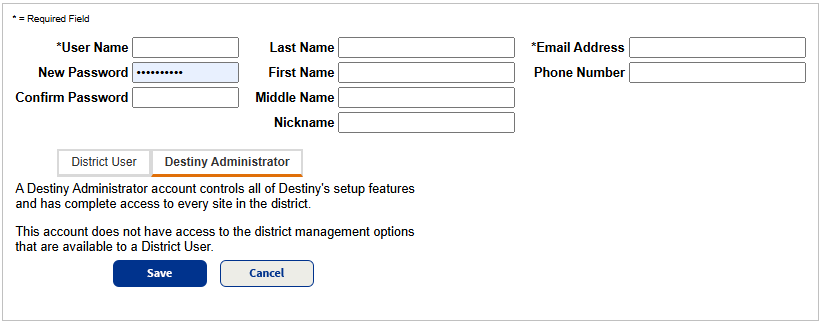
- For the first person you want to give Destiny Administrator access, enter the User Name, New Password, and Confirm Password.
Note: Follow general best practices, like using a unique user name and strong password.
- Enter the person's Email Address.
Note: This is a required field and used to recover a forgotten password. Follett recommends using a district-approved email address.
- In the Last Name, First Name, Middle Name, Nickname, and Phone Number fields, enter the user's demographic information.
- Click Save.