Generate a Hold Notices report
Once a hold is available, you can create a notice to let the patron know the item is ready for pickup.
To generate the report:
- Select Reports > Library Reports.
- Under Holds, click Hold Notices. The report setup page appears.
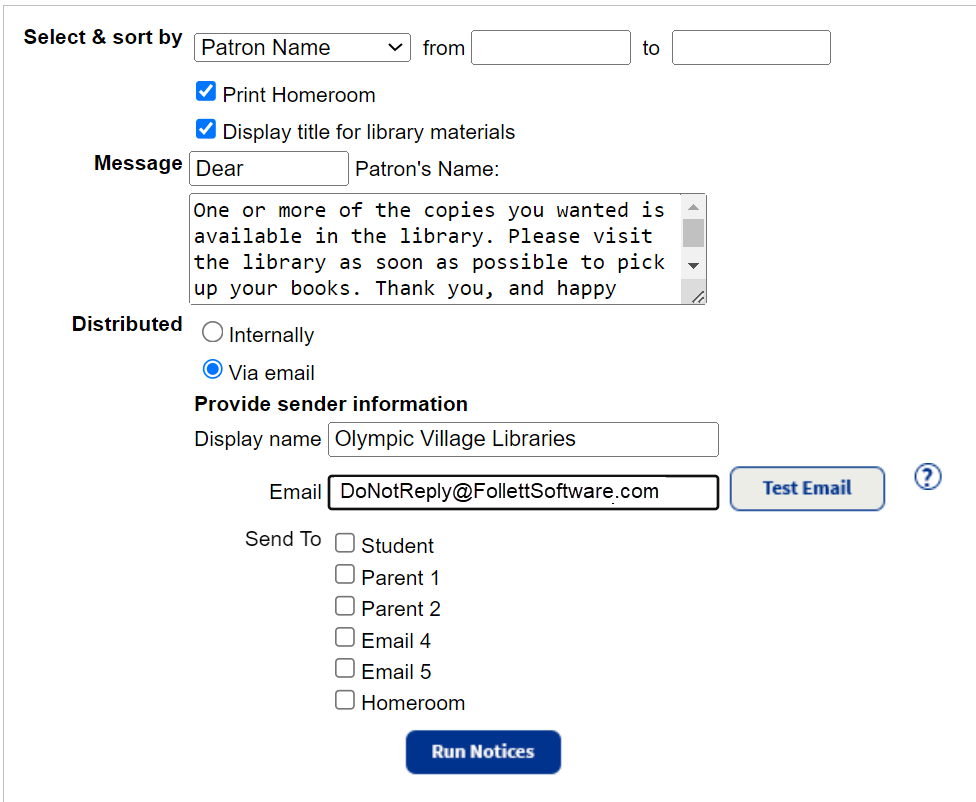
- Use the Select & sort by drop-down to select a method for identifying the patrons, and then enter a range in the from and to fields.
Note: Leaving the from and to fields blank will include all the patrons who meet the criteria you selected at the Select & sort by drop-down.
- Select Print Homeroom or Display title for library materials to include them in the notice.
- Type your greeting in the first Message field, and your preferred text in the field after Patron's Name.
Note: Library Manager automatically fills in the individual patron names.
- Use the following table to choose what you want to do:
If you want to...
Then...
Print notices
Next to Distributed, select Internally.
Email notices
Note: To use email features in Destiny, the Destiny Administrator needs to set up the mail server. View Set up SMTP settings for more information. - Next to Distributed, select Via Email. Additional options appear.
- In Display name, type the name you want to display as the email sender.
- In Email, type the return email address.
- To send a test email to yourself, click Test Email.
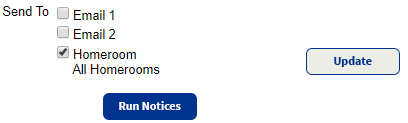
- Select one or more of the email checkboxes or Homeroom.
Notes:
- The email options correspond with patron record fields.
- Limit which homeroom teachers receive notices by clicking the Update button that appears after you select Homeroom.
- Click Run Notices. Report Manager opens.
- When the status of the job is Completed, click View.
- If you selected to email the notices, the report details the success of the transmission.
- If you selected to print notices, the report is a PDF of those notices.