Use the Patron Import Converter
At the district level, adding or updating patron records requires use of an XML (extensible markup language) file. But many Student Information Systems only let you extract a CSV (comma-separated value) file. If that is the case, use the Patron Import Converter (PIC) to change the CSV file to an XML file for import into Destiny.
With the PIC, you can:
- Upload data for one school or an entire district in one file.
- Add, update, transfer, and delete patrons.
- Automate the conversion and upload processes.
|
Note: The Patron Import Converter only accepts CSV files. |
Before You Start
Video: Preparing to Download the Patron Import Converter
To make the process easier, do the following before you start:
- Create a working folder in an easy-to-access location.
- Make sure you have a district user login with the Manage Patrons for the District permission.
Note: Contact your Destiny Administrator if you need to set up a district user with the appropriate access. - Make sure there is a Site Short Name or Alias value for each your sites in Destiny.
To check for Site Short Name or Alias:
 Click here for instructions.
- Log in as a Destiny Administrator.
- Select District View > Applications menu
 > Setup.
Note: If you don't see Setup, you are not logged in as a Destiny Administrator. 
- On the Sites tab, next to your district, click
 .
. - Scroll down to Short Names and Aliases, and click Aliases. The Update Site Aliases for District page appears.
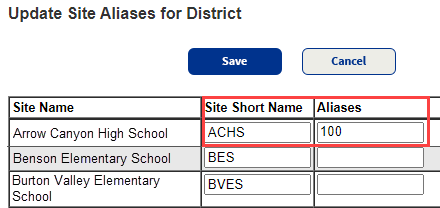
- Make sure the site short name in the patron file from your Student Information System (SIS) matches either the Site Short Name or any Alias values in Destiny for that site.
|
Note: If your patron file has building codes or identifiers for each of your sites that are different than the Site Short Name listed, you can add those values as an Alias for each site on this page. |
Process Overview
What do you want to do
Step 1: Export patron data from your Student Information System (SIS) to a CSV file
The Patron Import Converter uses Windows Latin (Cp1252) encoding by default. Here's more info on acceptable types of encoding.
The patron data CSV file must include:
- The expected values in the expected CSV fields.
- Either of the following to uniquely identify each patron:
- District ID
- Barcode number
- A Site Short name.
- A Last Name field.
See the full list.
|
Notes:
|
After you have exported your patron data to a CSV file, copy the CSV file to your working folder.
Step 2: Download the Patron Import Converter
Video: Downloading the Patron Import Converter
The Patron Import Converter downloads as an executable file in a compressed zip folder named cmdline.zip.
To download the Patron Import Converter:
| Important: You must be logged in as a district-level user with the Manage Patrons for the District permission. |
- Log in to Destiny as a district user.
- Select Admin > Download Tools.
- Next to Patron Import Converter, click Download.
For more details, see Download Tools.
Notes:
- District users can also download the file from Update Patrons > Schedule.
- Destiny Administrators can also download the file from the District Options page.
- In your computer's download folder, find cmdline.zip and move it to your working folder.
Step 3: Extract the Patron Import Converter
Before using the Patron Import Converter, you must extract the files.
- In your working folder, right-click the cmdline.zip folder that you downloaded.
- Extract the files using your preferred method.
- To see the extracted files, select cmdline > FSC-Destiny > fsc > bin. The files should include:
- Patronimport.properties.sample
- PatronImportConverter.exe
- Patronimportconverter.l4j.ini.sample
- Remote Properties
Step 4: Configure the Patron Import Converter
Video: Configuring the Patron Import Converter
The Patron Import Converter lets you open, edit, and save your properties file. You set the parameters for matching, skipping, and deleting data.
| Note: If you prefer to edit the properties file directly, see Patron Import Converter: Advanced Options. |
- In your working folder, select cmdline > FSC-Destiny > fsc > bin.
- Double-click the PatronImportConverter.exe file. The Patron Import Converter opens.

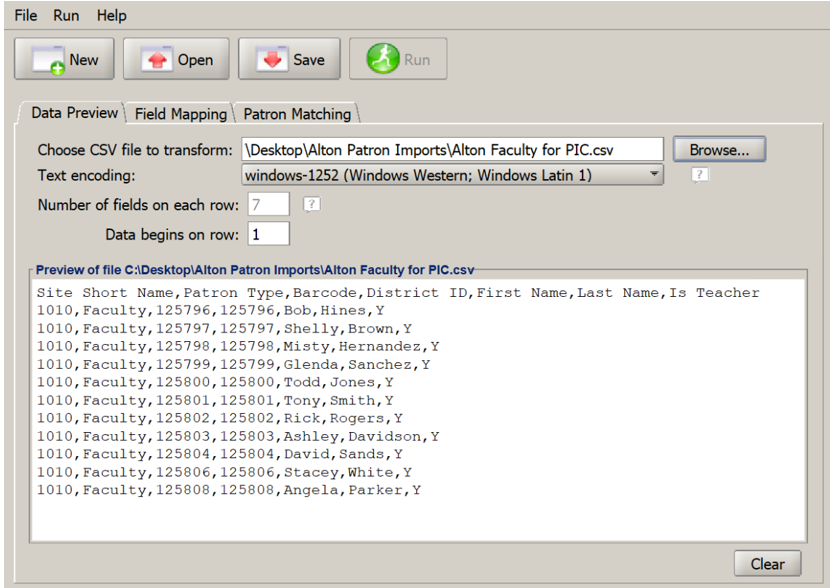
Note: The Windows version opens a DOS window in the background. - On the Data Preview tab, next to Choose CSV file to transform:, click Browse.
- In the pop-up, select the CSV file you exported from your SIS.
Note: This file should be in your working folder. - Click Open. A preview of the file appears in the lower window.
- In the Preview of file area, check that the file is formatted with a comma between each value and each patron has their own line. If the data doesn't appear correctly, check that your file is saved as a CSV-formatted file.
- On the Field Mapping tab, use the drop-down below each column header to select which field from the CSV file you want to use for each Destiny Field.
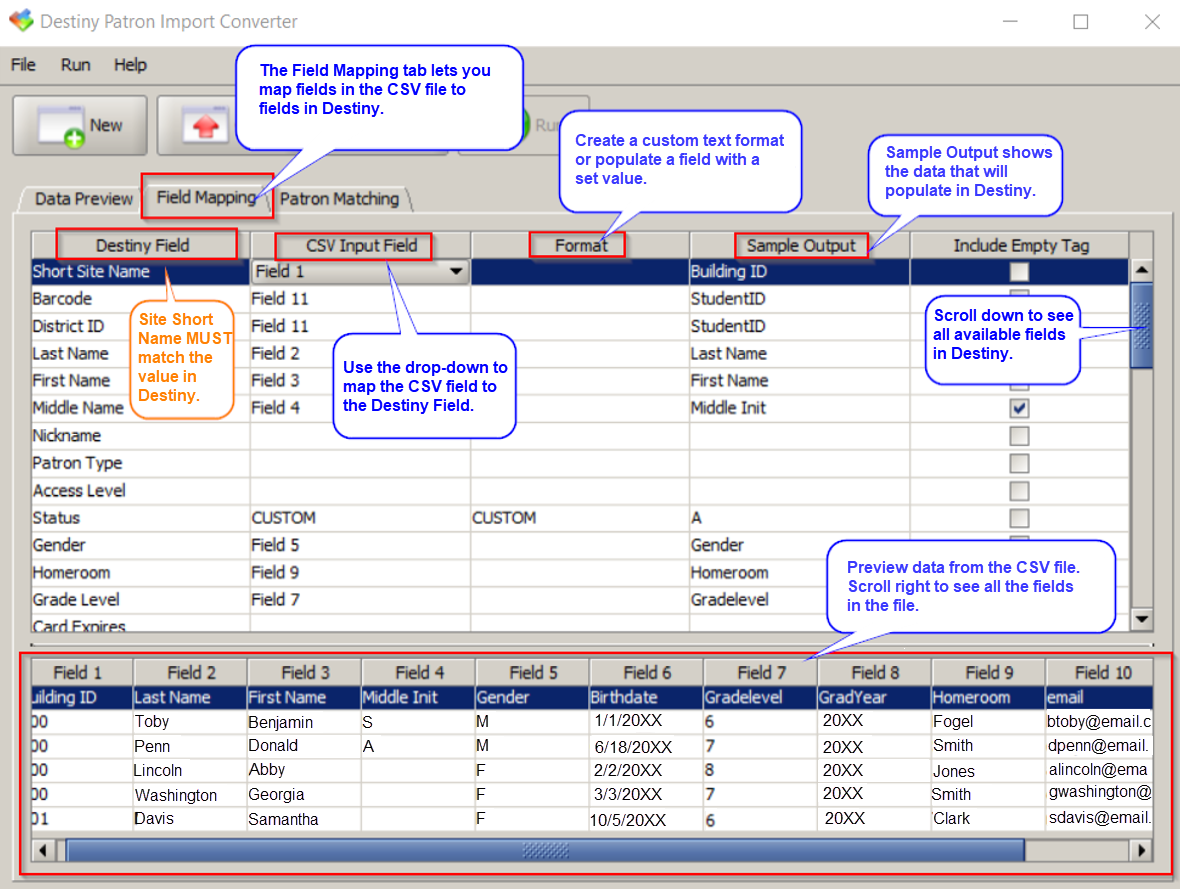
Following is a list of columns:
- Destiny Field shows the name of the patron fields in Destiny.
Note: Site Short Name indicates what school the record is associated with and must match the value in Destiny. Here's the full list.
- CSV Input Field lets you use a drop-down to select the CSV field you want to use for each Destiny Field.
- Format lets you customize fields for advanced configuration.
- Sample Output shows a preview of the selected data.
- Include Empty Tag lets you clear data from a particular field in Destiny by selecting the checkbox in that row.
Notes:
- You can use the same field multiple times.
- For custom mapping or advanced functionality, see Patron Import Converter: Advanced Options, or contact Destiny Technical Support.
- Destiny Field shows the name of the patron fields in Destiny.
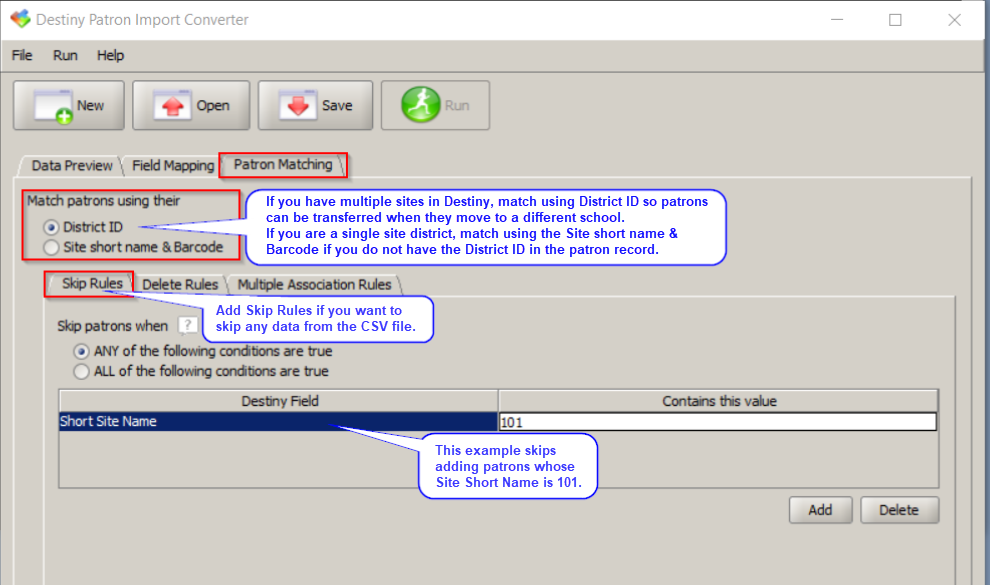
- On the Patron Matching tab:
- Under Match patrons using their, select one of the following:
- District ID: Recommended for multi-school sites so patrons can be transferred if they change schools.
- Site short name & Barcode: Recommended for a single site if the District ID is not in the patron record.
Notes:
- Patron Matching is how Destiny matches an existing record when the XML file is imported.
- If the ID value in the CSV file doesn't match the barcode or district ID in the patron record in Destiny, a duplicate record may be created.
- If you manually add patron records, use the Student ID in the Barcode and/or District ID fields so future imports can find the matching record.
- Do any of the following:
Important: Be sure to choose carefully:
- ANY indicates “If ANY of the rules match, do this”.
- ALL indicates “Only do this if ALL rules match”.
Example: To skip based on the Patron Type field being Teacher or Faculty, this option must be set to ANY, since no patron record could have a Patron Type of Teacher AND Faculty. To Then... Skip Patrons
- Click the Skip Rules tab.
- At the bottom, click Add.
- Click Destiny Field, and select the field from the list.
- Click Contains this value, and enter the value to skip.
- Repeat steps ii - iv for any additional data you want to skip.
- Decide whether a record must meet ANY or ALL conditions to be skipped, and select that option under Skip patrons when.
As the Patron Import Converter processes each CSV record, it tests the data. If the data matches the conditions you define, it skips the record.
Note: To skip a header record, configure the table to skip the record when encountering the header values. Example: If the word “barcode” is in the header of the patron barcode column, skipping any data with “barcode” in the record would skip the header record.
Delete Patrons
- On the Patron Matching tab, click the Delete Rules tab.
- At the bottom, click Add.
- Click Destiny Field, and select a field from the list.
- Click Contains this value, and enter the value you want to delete.
- Repeat steps ii - iv for any additional data you want to delete.
- Decide whether a record must meet ANY or ALL conditions to be deleted, and then select that option.
- To update a patron record before deleting it, select the Update before delete checkbox. The Destiny database retains archived information for all patrons.
As the Patron Import Converter processes each CSV record, it tests the data. If the data matches the conditions you define, it deletes the patron record.
Note: Destiny will not delete anything by default. If you add Delete Rules, the file generated will delete patrons who meet the conditions and do not have outstanding transactions (checkouts, fines, etc.).
To remove patrons with outstanding transactions during the upload, select the Allow patrons with outstanding transactions to be deleted checkbox in Admin > Update Patrons > Upload Changes tab or in Admin > Update Patrons > Schedule tab, Scheduled Patron Job page.
Associate Patrons
This option is only available if matching on District ID. If you need to associate patrons with multiple sites, contact Destiny Technical Support.
- Under Match patrons using their, select one of the following:
- Click Save. The Save Configuration As pop-up appears.
- Name your file.
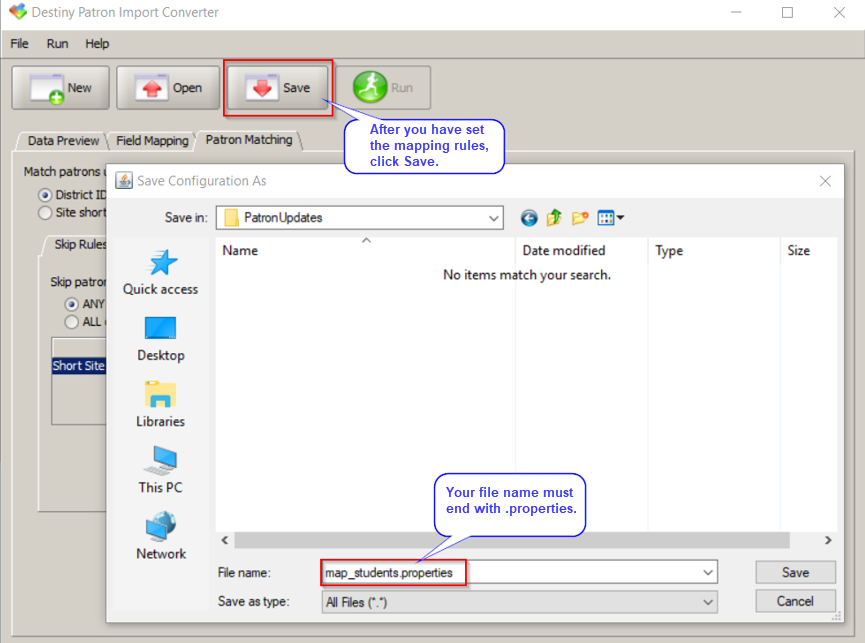
Notes: The file name should end with .properties. - Click Save in the pop-up.
Step 5: Run the Patron Import Converter
Video: Running the Patron Import Converter
Run the Patron Import Converter to convert CSV data into XML format.
- Click Run. A pop-up appears.
Note: You must have saved your properties file for the Run button to become available.
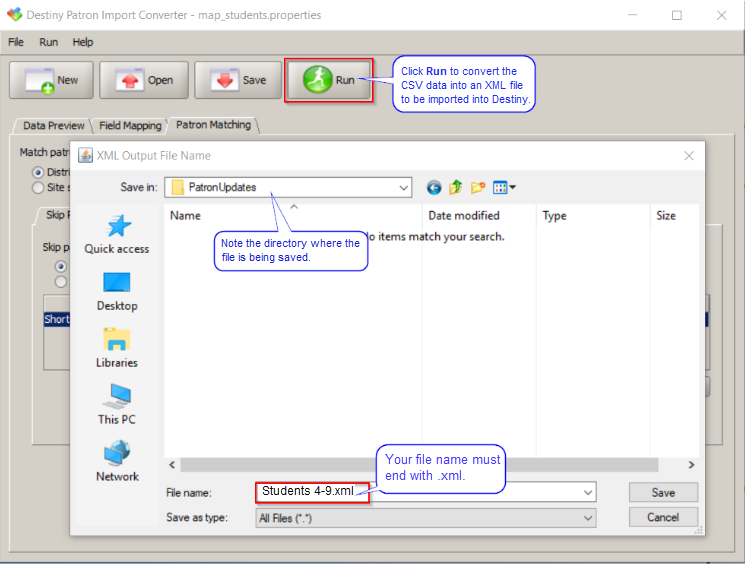
- Choose a File name for the XML file you are going to create, keeping the .xml extension.
- Save it in your working folder, using a file name that relates it to the CSV and properties file it is converted from.
The Patron Import Converter creates two files: the XML file and a log file named <filename>-log.txt.
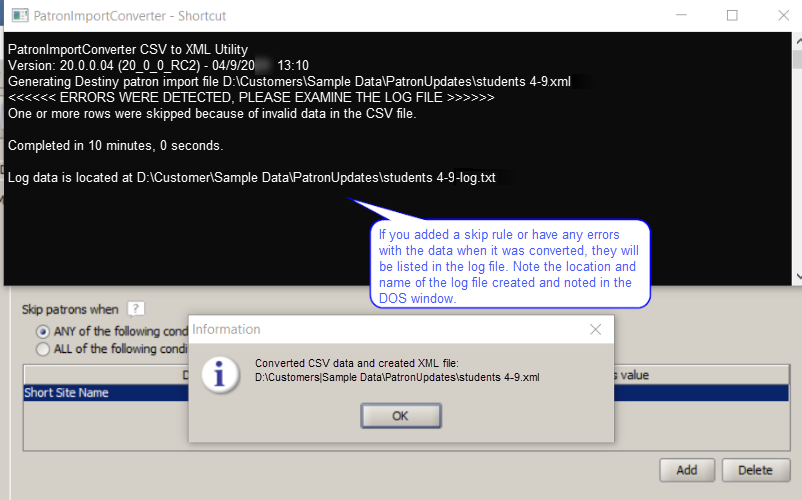
The PIC writes any exceptions to the log file. At the end of the log file is a summary count of the number of rows skipped and the number of errors.
If you added a skip rule or had any errors with the data when it was converted, details appear in the log file.
Note the location and name of the log file in the DOS window and pop-up.
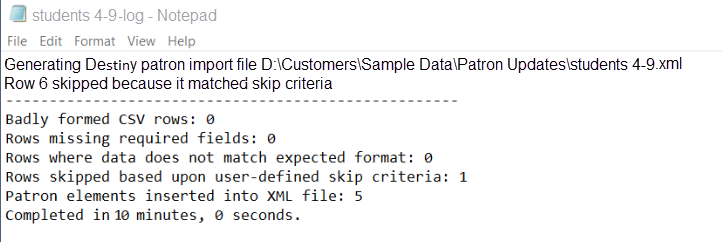
Here is a list of possible errors.
Step 6: Upload your XML file to Destiny
- Log in to Destiny as a district user with the Manage Patrons for the District permission.
Important:
- Only district users can upload an XML file.
- If you are logged in as a site user and use Admin > Import Patrons, you will get an error in the Job Summary.
-
Go to District Back Office.
- Select Admin > Update Patrons > Upload Changes tab.
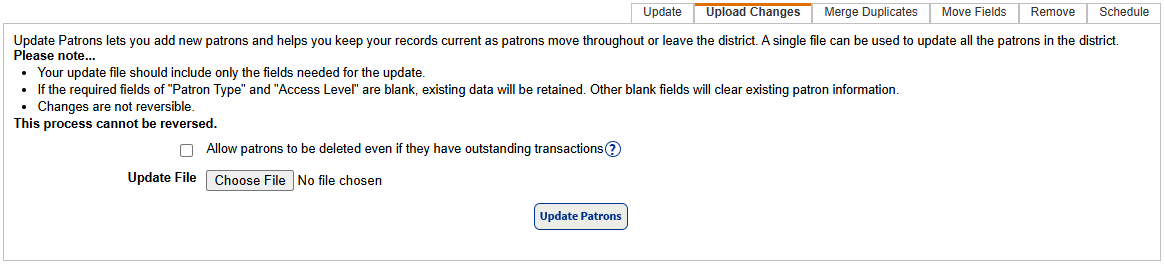
- If you want to Allow patrons to be deleted even if they have outstanding transactions, select the checkbox.
Notes: If you set delete rules in the mapping, then:
- Any copies checked out to the deleted patrons are marked Lost.
- Any other transactions (fines, holds, reserves) are deleted from the system.
- Click Browse (or Choose File, depending on your browser) to find and select your XML file.
- Click Update Patrons.
- On the confirmation message, click Yes.
Important: This process is not reversible. Make sure you have a current backup of your database.
|
Notes:
|
To view the Job Summary:
- Select Admin > Job Manager.
- Next to the job you want to see, click View.
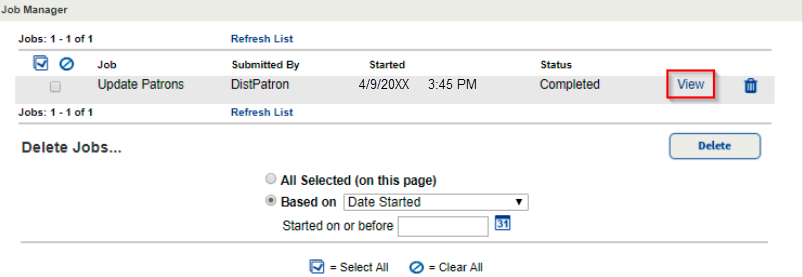 .
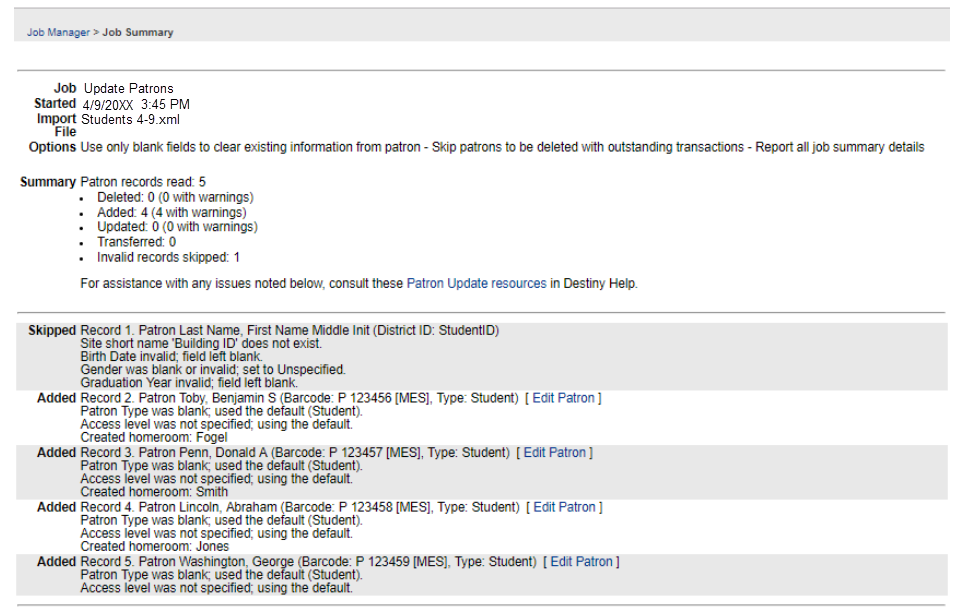
.The job report appears.