Individual Update Tab (Resource Manager)
With Individual Update, you can update one or more fields in an item record.
- Select Catalog > Update Resources > Individual Update tab.
- Next to Resource Types, click Update to select the resource type of the item being updated.
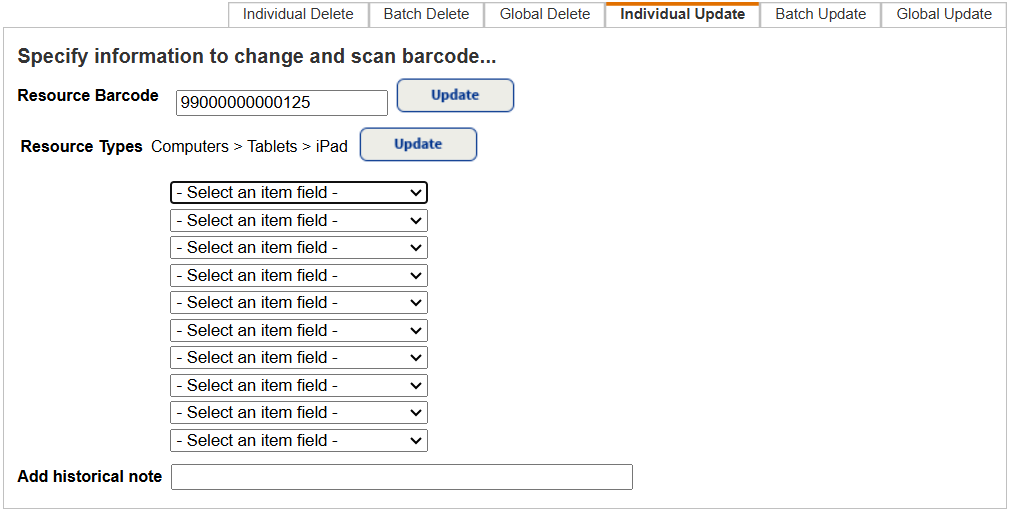
Note: While this is not required, if a Resource Type is selected, the Select an item field drop-downs will reflect custom fields for that particular resource type.
- Select the top Select an item field drop-down. For details of each item field, click here. Depending on your item field selection, another drop-down or field appears. Select or type information accordingly. Repeat as needed.
Notes:
- Fields available in the drop-down at the district- and site-level are: Condition, Custodian, Date Acquired, District Identifier, Funding Source, Projected Life, Purchase Order, Purchase Price, Salvage Value, Serial Number, Status, and custom fields related to the selected Resource Types.
- The site level also has: Department, Home Location, and Item Category.
- District-level users with the Allow site access permission can run a site-level report.
- To add a note to the item's permanent Transaction History, type it in the Add historical note field.
- When you are done setting up item fields to be updated, scan or type the applicable barcode in the Resource Barcode field.
- Next to Resource Barcode, click Update.
- Continue to scan more barcodes, as applicable.
As each record is processed, the displayable name and barcode number appear in the Most Recently Updated section.
To verify the changes, click the barcode number of the updated item.
If duplicate barcodes are allowed across the district, a district-wide search could find more than one item with the barcode entered. Select the appropriate item.