Manage holds, reserves, and interlibrary loans – new look
Use the View Requests page to manage holds, reserves, and interlibrary loans (ILLs).
|
Notes: |
Access the View Requests page
You can access the View Requests page in the following ways:
- Circulation > Holds/ILL > View Requests
- Reports > Library Reports > Holds or InterLibrary Loans
Note: The Holds and InterLibrary Loans reports take you to the same page, with different options selected.
- If you have requests that require action, select
 > Processing Needed.
Navigate the View Requests page
The View Requests page has four tabs:
- Needs your approval
- Local holds
- Local ILLs
- Offsite ILLs
If a tab contains requests that need your attention, a red dot appears on that tab.
Manage requests that need approval
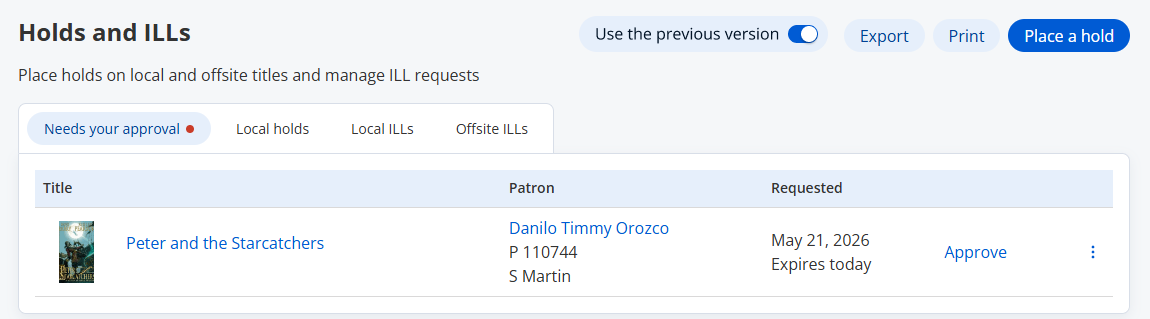
The 'Needs your approval' tab shows loan requests placed by patrons at your site that need to be reviewed.
For each request, you can see:
- Cover image (if your site subscribes to TitlePeek™ or you manually uploaded an image)
- Title requested
- Patron name
- Patron barcode
- Homeroom
- Date the hold was placed
- How many days remain before the request expires
All requests on this tab have a status of Unapproved. You can:
- Click Approve to review and approve the request. When you approve a request for a copy available at another library, it moves to the Local ILLs tab for the borrowing site and the status changes to Pending. It then appears on the lending site's Offsite ILLs tab with a 'New request' status.
- Select
 > See waitlist to open the Holds on Title page.
 - Select > Decline hold. A pop-up confirmation message before the request is declined.
Manage local holds
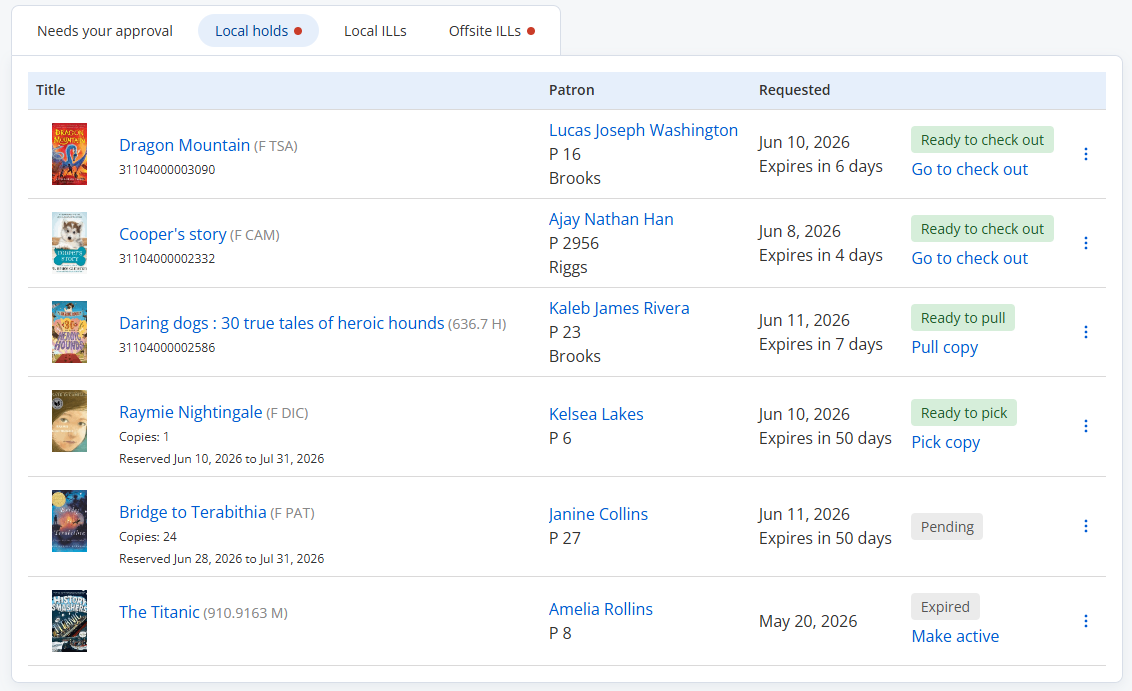
The 'Local holds' tab shows requests placed by patrons at your site for items at your site.
For each request, you can see:
- Cover image (if your site subscribes to TitlePeek™ or you manually uploaded an image)
- Date the hold was placed
- How many days remain before the request expires
- Status
- Patron name
- Patron barcode
- Homeroom
- Title requested
- Quantity
- Sublocation
- Call number
- Copy barcode
Local hold statuses
Local holds are grouped by status, and the most recent requests appear first within each group. The groups appear in this order:
- Ready to check out
- Ready to pull
- Ready to pick
- Pending
- Expired
Ready to check out
These are copies that:
- Became available through checkin, cataloging, or inventory.
- Were available when requested, and have been pulled or picked (See 'Ready to pull' and 'Ready to pick' statuses below).
Click Go to check out to access the Check Out page for the patron.
|
Note: Copy the barcode before you click Check Out, so you can paste it on the Check Out page. |
Items remain in this status until checked out by the requesting patron, or the expiration date passes.
Other available actions:
- Print notice
- See waitlist
- Cancel hold
These are holds placed by patrons at your site on copies that are currently available.
Click Pull copy to confirm that you pulled the item from the shelf.
If more than one copy can fulfill the request, a pop-up asks whether you pulled the suggested barcode. If needed, enter a different barcode, and then confirm the copy you pulled.
Once you pull the copy, it becomes 'Ready to check out'.
Other available actions:
- See waitlist
- Cancel hold
After you click Pull copy, the 'Go to check out' option appears.
These are reserves that have reached their ready-reserve date.
Click Pick copy to open the Pick List page.
Once you pick the copy, it becomes 'Ready to check out'.
Other available actions:
- See waitlist
- Cancel hold
Pending
These are:
- Holds waiting for copies to become available through checkin, import, cataloging, or inventory.
- Reserves that have not yet reached their ready-reserve date.
For pending requests, you can:
- See waitlist
- Cancel hold
|
Note: Reserves always have top priority over holds. You cannot edit the priority; you can only delete the reserve. |
Expired
These are for local requests that are past their expiration date.
For expired requests, you can:
- Make active
- See waitlist
- Cancel hold
|
Notes:
|
Manage local ILLs
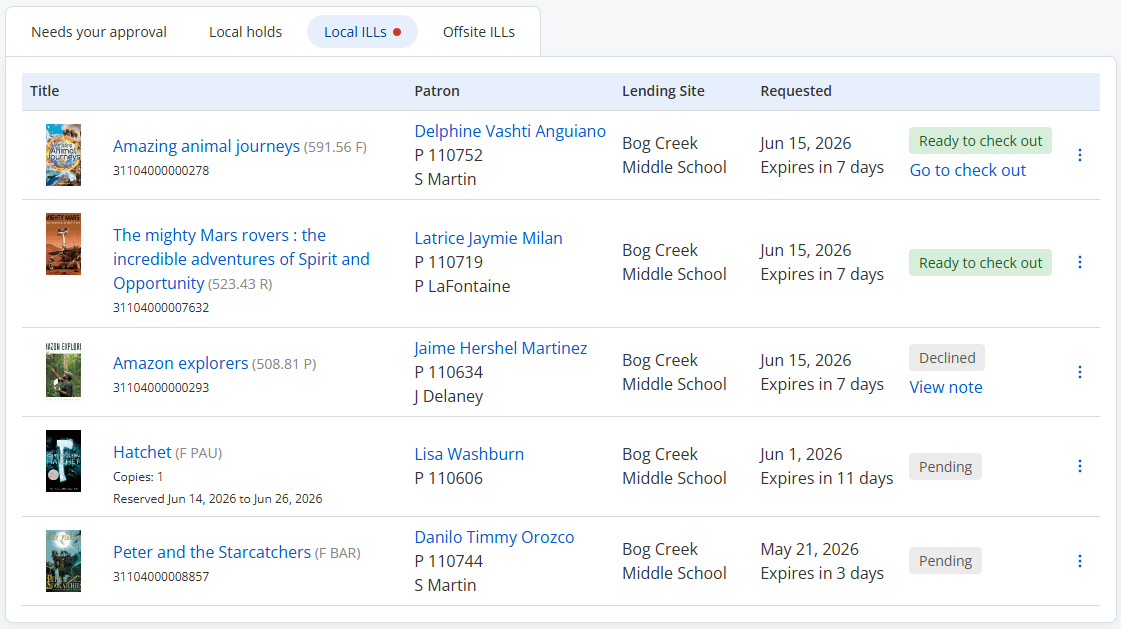
The Local ILLs tab shows requests placed by patrons at your site for items at other sites.
For each request, you can see:
- Cover image (if your site subscribes to TitlePeek™ or you manually uploaded an image)
- Date the ILL was requested
- How many days remain before the request expires
- Status
- Patron name
- Patron barcode
- Homeroom
- Lending site
- Title requested
- Quantity
- Reserved dates
- Call number
- Copy barcode
Local ILL statuses
Local ILLs are grouped by status, and the most recent requests appear first within each group. The groups appear in this order:
- Checked in
- Ready to check out
- Shipped
- Declined
- Checked out
- Pending
- Returning
- Expired
Requests with a status of 'Checked in', 'Ready to check out', or Shipped are marked as needing action.
Checked in
These are returned ILLs that are ready to be sent back to the lending site.
Click Mark shipped to send the item back.
Other available actions:
- See waitlist
Ready to check out
These are ILLs that are ready to check out to the patron at the lending site.
Other available actions:
- See waitlist
- Print notice
Shipped
These are ILLs that are on the way to your site.
Click Mark received when the item arrives.
Other available actions:
- Check out to patron
- Mark lost
- Print packing list
- See waitlist
If you mark an item lost, Destiny asks you to confirm that the copy will be marked lost at the site that shipped the book.
Declined
These are ILL requests that were declined by the lending site.
Click View note to see more information, including date and time, site, who declined the request, and the reason.
For declined requests, you can:
- See waitlist
- Cancel hold
Checked out
These are copies that were shipped to your site and checked out to the patron.
For checked-out requests, you can:
- See waitlist
- Mark lost
Pending
These are for copies that have not yet been shipped or picked up.
For pending requests, you can:
- See waitlist
- Cancel hold
Returning
These are copies that were shipped back to the lending site, but not yet received.
For returning requests, you can:
- See waitlist
- Mark lost
Expired
These are for ILL requests from patrons at your site that are past their expiration date.
For expired requests, you can:
- See waitlist
- Make active
Click Print packing list to generate a packing list in Job Manager.
Manage offsite ILLs
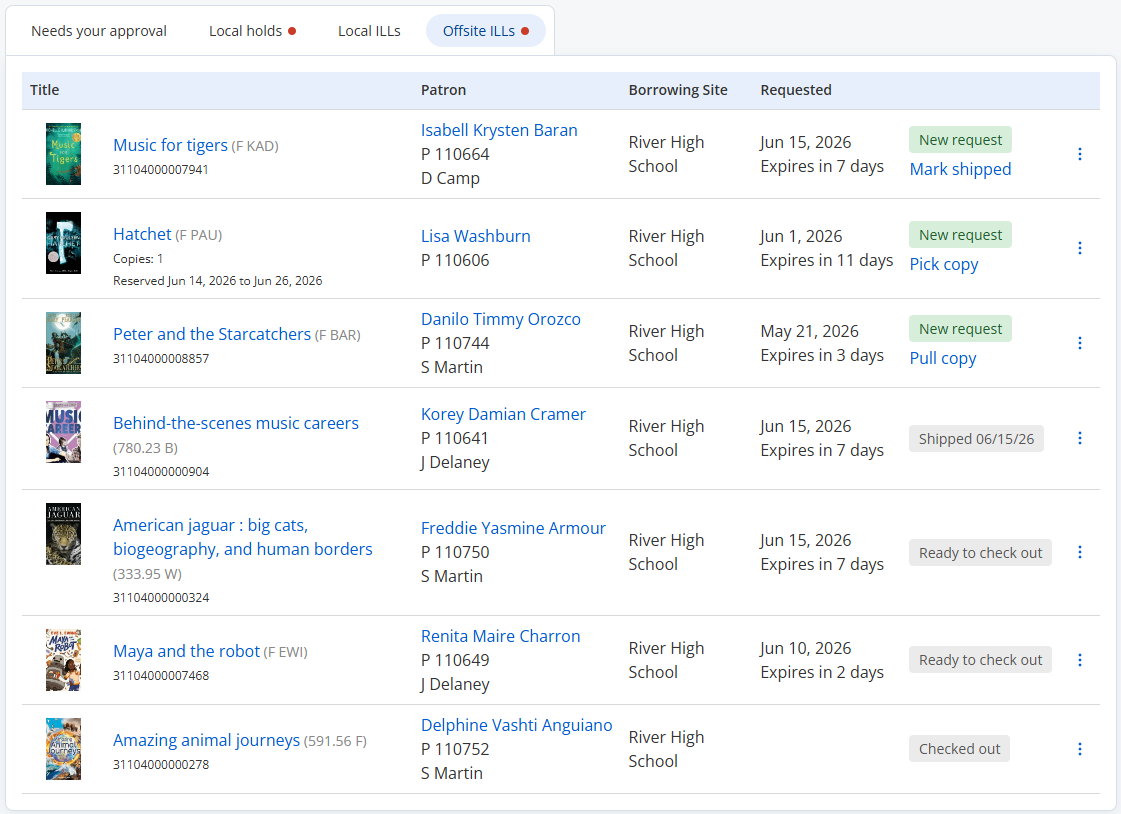
The Offsite ILLs tab shows requests placed by patrons at other sites for materials in your library.
For each request, you can see:
- Cover image (if your site subscribes to TitlePeek™ or you manually uploaded an image)
- Date the hold was placed
- How many days remain before the request expires
- Status
- Patron name
- Patron barcode
- Borrowing site
- Title requested
- Quantity
- Reserved dates
- Call number
- Copy barcode
Offsite ILL statuses
Offsite ILLs are grouped by status, and the most recent requests appear first within each group. The groups appear in this order:
- New request
- Shipped
- Ready for check out
- Pending request
- Checked out
- Checked in
Requests with a status of 'New request', Shipped, or 'Ready for check out' are marked as needing action.
New request
These are requests from other sites that have not been shipped or pulled yet.
For a new request, the actions depend on the delivery method.
|
If the delivery method is... |
Then... |
|
|---|---|---|
|
Not specified |
You can click Pull copy (for a ready hold) or Pick copy (for a ready reserve) once you get it from the shelf. Other actions include:
|
|
| Ship it |
Click Mark shipped once you send it to the borrowing site. Other actions include:
|
|
|
Patron Pickup |
You can click Pull copy (for a ready hold) or Pick Copy (for a ready reserve) once you get it from the shelf. Other actions include:
|
Shipped
These are for requests that you have marked as shipped, but the borrowing site has not received yet.
For shipped requests, you can:
- Mark received
- Mark lost
- See waitlist
Ready to check out
These are copies the borrowing school received and are ready to check out to the patron.
For requests that are ready for checkout, you can:
- Packing list
- See waitlist
Pending request
These are for requests that do not need to be shipped yet.
For pending requests, you can:
- Packing list
- Decline hold
- See waitlist
Checked out, Checked in, Arrived, and On the way
For requests in these statuses, you can select See waitlist to open the Holds on Title page.
|
Note: For more information on the ILL process, see Fulfill ILL requests. |
Place a hold
To place a new hold from the View Requests page, click Place a hold.
Print or export current requests
To print the current requests, click Print.
To download the current requests as an Excel file, click Export.