View holds on a title
Each requested title has a 'Holds on Title' page that lists all patrons waiting for a copy. Destiny uses the patron's priority and the request date to determine the patron's position in the waitlist.
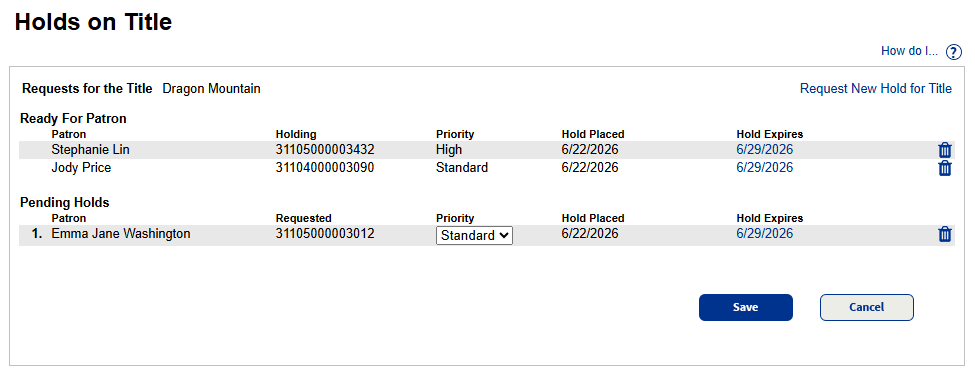
Access the 'Holds on Title' page
You can access the 'Holds on Title' page in any of the following ways:
- From the Copy Status page, click View Holds.
- From a patron's Holds/ILL page, next to the title, click
 .
. - From the View Requests page, next to the title, select
 > See waitlist.
Note: If you have not enabled the new version of the View Requests page, next to the title, click
. - From the Patron Details page, next to the title, select > See all holds.
Note: If you have not enabled the new Patron Details page (previously Patron Status), next to the title, click
.
Waitlist organization
Reserves appear at the top, in order of the request date. They are not numbered. A reserve becomes ready on its ready-reserve date.
Below the reserves are the holds, sorted in ascending order by priority. Holds with the same priority are then sorted by the date the hold was placed.
Manage holds
You can perform various actions from the 'Holds on Title' page.
To request a hold:
Use the Request New Hold for Title link.
|
Note: The request defaults to you or the last patron you had open on the Holds/ILL page. |
To change a hold's priority:
- Use the Priority drop-down to select the new priority.
- Click Save.
Changes are immediate. The hold moves to the appropriate place in the waitlist.
While you can change the priority on pending holds, you cannot change the status of a hold. The status changes from Pending to Ready when a copy becomes available.
|
Note: You cannot edit the priority of a reserve. |
To change an expiration date:
- Click the existing expiration date.
- Select the new date from the calendar.
|
Notes:
|
To reactivate an expired hold:
- Click the Make Active link.
- Select the new date.
When you make an expired hold pending again, it is placed in a new position in the hold queue. The new position is based on the hold's priority and the date the hold was originally placed, not the date it becomes pending again.
To delete a hold or reservation, or a Pending or Ready ILL request:
Next to the request, click  .
.
| Note: You cannot edit a reserve's expiration date. To change it, delete the reserve and create a new one. You can only edit ILL requests to be filled by your site. |