Fulfill interlibrary loan (ILL) requests – new look
Interlibrary loans (ILLs) let libraries share materials with other libraries. Destiny tracks the copy until it is returned to the lending library.
|
Notes:
|
How the ILL process works
Here is the ILL process at a high level:
- A request is created by a patron or by library staff at the borrowing library.
- The borrowing library approves an ILL request.
- The lending library receives the new request.
- The lending library ships the copy, prepares it for pickup, or declines the request.
- The copy is delivered by shipment or patron pickup.
- The copy is checked in and returned to the lending library.
- The lending library receives the returned copy.
|
Note: If the delivery method of an ILL request is Patron Pickup, the transaction proceeds as a normal checkout after the patron checks it out. |
Lending library receives the new request
ILL requests are routed to the lending library once they are approved by library staff at the borrowing site.
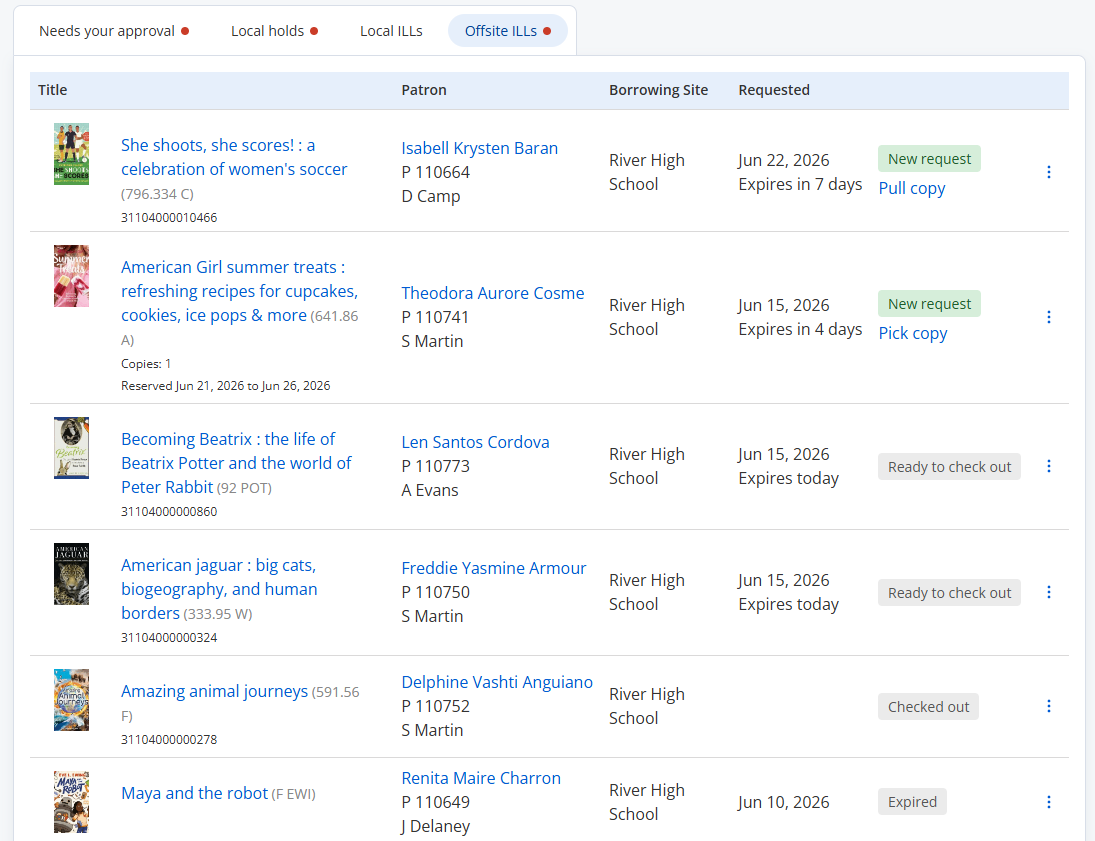
Requests placed by patrons at other sites for materials in your library appear on the View Requests page, Offsite ILLs tab. New requests that are ready to process appear at the top, with the status, New request.
Lending library ships the copy, prepares it for pickup, or declines the request
At the lending library, staff can either fulfill or decline the request.
Ship an item, or prepare it for patron pickup
The actions you can take depend on the delivery method selected when the ILL was approved.
|
If the delivery method is... |
Then... |
|---|---|
| Ship it |
|
|
Patron Pickup |
|
|
Not specified |
Follow your library's process to determine whether the item will be shipped or prepared for patron pickup. |
|
Notes:
|
Print a packing list
The lending library can print a Packing List to provide the borrowing library with details, including the requesting patron and barcode number, and the item's call number, title, and barcode.
Next to the request, select  > Packing List.
Decline a request
Next to the request, select > Decline hold.
If you decline a request, it is removed from your list. On the requesting site's list, the status changes to Declined. The librarian or patron at the borrowing library can then delete the request.
Copy is delivered by shipment or patron pickup
The next steps depend on the delivery method.
|
Note: For an ILL checkout, Destiny uses the loan period for the default patron type of the lending site. If district-defined ILLs are enabled, the loan period is set at the district level. |
For shipped materials
When the borrowing library receives the copy, they click Mark received, and the status changes to Ready to check out for both the lending and borrowing libraries.
When the borrowing library is ready to check out the book to the patron, they can go directly to the Check Out page (Circulation > Check Out) or use the View Requests page and click Go to check out next to the request.
Once checked out, the status changes to Checked out for the borrowing site and Pending for the lending site.
|
Note: If the copy does not arrive at the borrowing site, they can mark the copy Lost. This deletes the ILL from the borrowing library's View Requests page. |
For materials being picked up at the lending library
When the lending library checks out the copy to the patron, the ILL is deleted. The transaction proceeds as a normal checkout from that point and is no longer tracked as an interlibrary loan.
Copy is checked in and returned to the lending library
When a shipped ILL is checked in at the borrowing site, an alert message appears in Circulation > Check In to set aside the copy to send back. The status changes to Checked in for both the borrowing and lending sites.
The borrowing library clicks Mark shipped once they send it back to the lending library. The status changes to Returning for both the lending and borrowing libraries.
Lending library receives the returned copy
When a shipped copy is back in the lending library's possession, they click Mark received, and it no longer appears on the View Requests page.
Additional ILL actions
ILL Confirmation Emails
If the district-defined ILL process is enabled and an email is configured, users with the Receive ILL notification e-mails permission automatically receive status confirmation emails as a copy moves through the ILL process.
These email notifications include:
- Interlibrary Loan Request Received
- Interlibrary Loan Request Declined
- Interlibrary Loan Copy Shipped
- Interlibrary Loan Copy Received
- Interlibrary Loan Copy Marked Lost
- Interlibrary Loan Copy Returning
- Interlibrary Loan Copy to Return
- Interlibrary Loan Copy Automatically Marked Lost
Cancel a pending request
The borrowing library can cancel a pending request.
- Go to the View Requests page > Local ILLs tab.
- Next to the request you want to cancel, select > Cancel hold.
- A confirmation message appears. Click Yes to proceed.
Renew an ILL
If the lending library allows renewals of their materials, staff can renew the checkout in Check Out or Patron Details.
Patrons who have permission to renew their own library materials can renew eligible ILL checkouts in My Info (in Destiny Back Office) or My Stuff (in Destiny Discover).