View a patron's details – new look
The Patron Details page lets you view information about a particular patron and complete common tasks from one place. Depending on your permissions and the Destiny products your school uses, you can also perform actions, such as checking out items, placing holds, and printing a checkout summary.
|
Notes:
|

Access the Patron Details page
To view a patron's details:
- Select Patrons > Search.
- In the Search field, scan or type the patron's barcode, or enter a term, and then use any of the following tools:
- To limit your search by a specific field, such as last name or homeroom, use the drop-down.
- To include inactive or restricted patrons, deselect Only active patrons.
- To search all sites' patrons, deselect Only my patrons.
- Click Search.
- If there is only one match, the patron's details page opens. Otherwise, in the search results, select the patron you want.
Navigate the Patron Details page
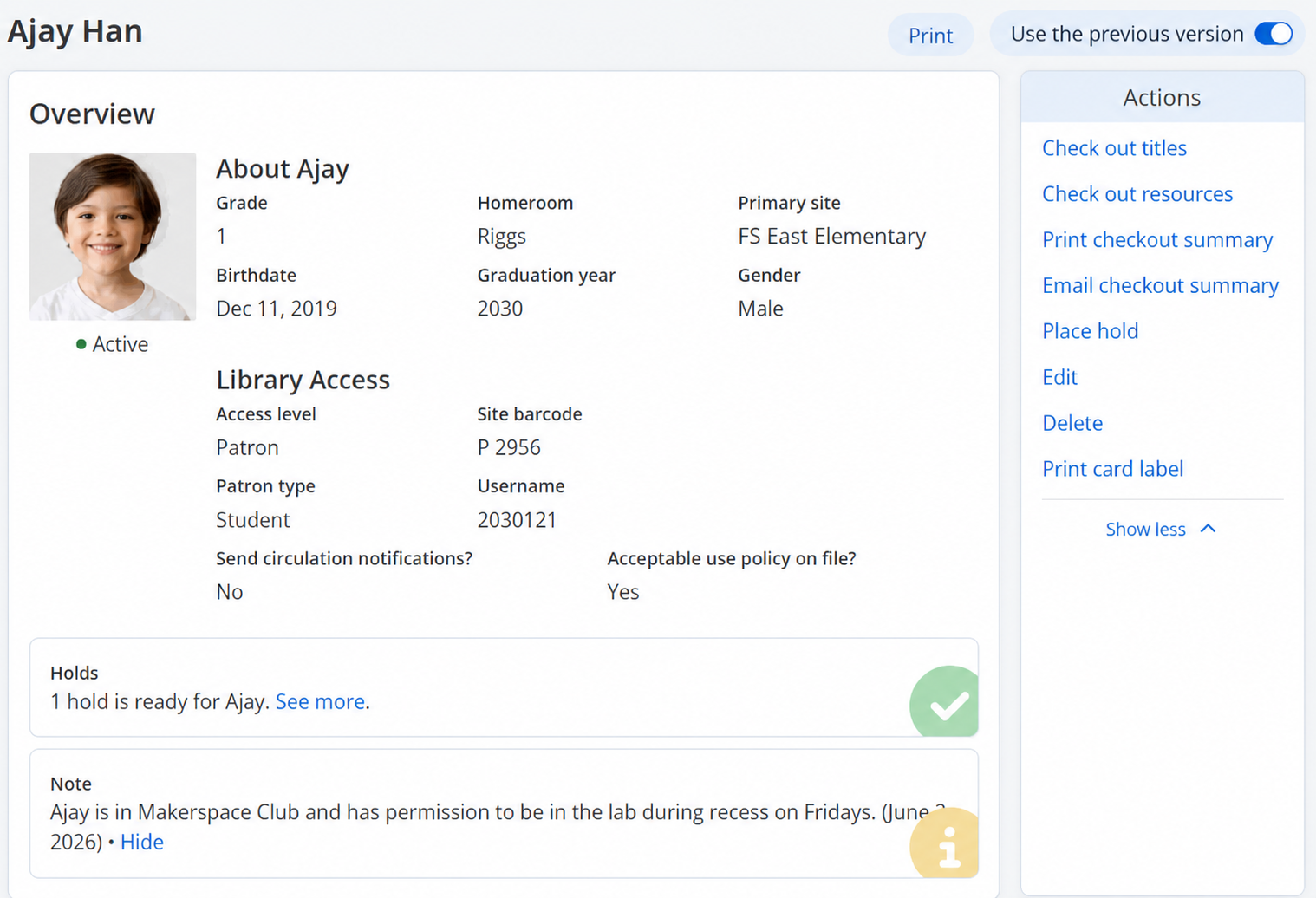
The Patron Details page is organized into sections. In Overview, find a summary of the patron's information and any alerts or notes that need attention. The Actions menu on the right gives quick access to common tasks. As you move down the page, you can review sections for checkouts, holds, fines, notes, and other account details.
Overview
In the Overview section, see patron information organized as follows:
- About [patron nickname or first name]: Basic information about the patron, including grade, homeroom, and primary site.
- Library Access: Details related to library access, including access level, district ID, site barcode, patron type, and username.
- Holds: Ready holds, if applicable.
- Notes: Notes for the patron that are flagged as important.
Note: If you want to hide a note from the top of the page while you work, click Hide. The note remains in the Notes section and appears again the next time you access the page.
Actions
The Actions menu gives quick access to common tasks:
- Check out titles (Library Manager): Goes to the Check Out page.
- Check out resources (Resource Manager): Goes to the Check Out Items page.
- Print checkout summary: Opens a printable PDF of the patron's checked out and overdue items.
- Email a checkout summary: Select email addresses, and then send an email with the patron's checked out and overdue items.
Note: Email options are based on Site Configuration settings.
- Place hold: Goes to the New Hold Request page.
- Edit: Goes to the Edit Patron page.
- Delete: Opens a confirmation pop-up before the patron is deleted.
- Print card label: Prints a barcode label for the patron.
Checked out
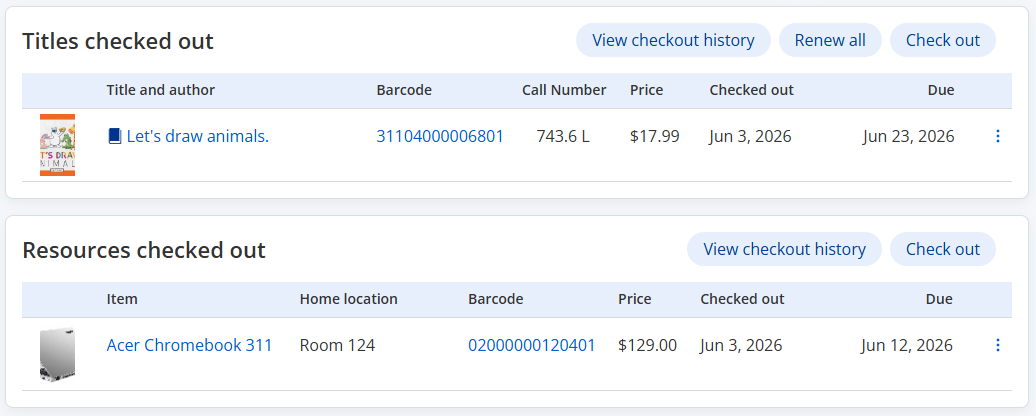
The "checked out" sections show the materials currently checked out to the patron, by Destiny product.
|
Note: The following information includes Destiny Library Manager and Destiny Resource Manager. If you have Destiny Textbook Manager or Destiny Media Manager, you will see "Textbooks checked out" and/or "Media checked out". |
Titles checked out (Library Manager)
See all titles currently checked out to the patron, including:
- Title and author (links to title details)
- Cover image (links to title details)
- Barcode (links to copy status)
- Call Number
- Price
- Checked out (date)
- Due (date)
Note: If a due date is 7 or fewer calendar days away, additional text appears beneath the due date, such as Due in [x] days, Due tomorrow, Due today, or Overdue.
From the top of this section, you can:
- View checkout history.
- Renew all titles.
- Access the Check Out page.
Next to a title, click  to:
to:
- Renew the title.
- Mark the title lost.
Resources checked out (Resource Manager)
See all resources currently checked out to the patron, including:
- Item name (links to resource details)
- Image (links to resource details)
- Home location
- Barcode (links to item status)
- Price
- Checked out (date)
- Due (date)
Note: If a due date is 7 or fewer calendar days away, additional, applicable text appears beneath the due date: Due in [x] days, Due tomorrow, Due today, or Overdue.
From the top of this section, you can:
- View checkout history.
- Renew all items.
- Access the Check Out page.
Next to an item, click to:
- Renew an item.
- Mark an item lost.
- Mark an item stolen.
- Add a help ticket.
Holds (Library Manager)
The Holds section lists the patron's current holds, reserves, and interlibrary loan requests, including:
- Title and author (links to title details)
- Cover image (links to title details)
- Barcode, if a specific copy is requested (links to copy status)
- Call Number
- Home Location
- Quantity
- Status
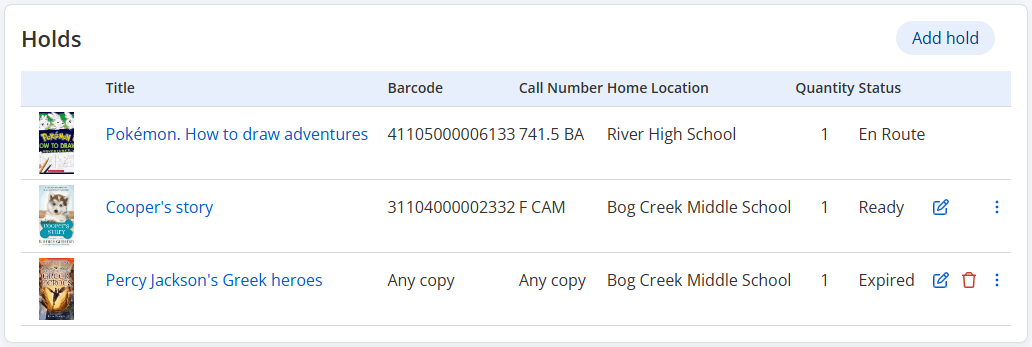
From the top of this section, click Add hold to access the New Hold Request page.
Next to a request, you can:
- Click
 to access the Holds on Title page.
 - Click
 to delete the request.
 - Click to:
- Check out an interlibrary loan.
- See all holds on the title.
Fines
From this section, you can see all fines associated with the patron, including:
- Type (links to fine details)
- Amount
- Item (links to title or item details)
- Barcode (links to title or item details)
- Call number, if applicable

From the top of this section, you can:
Next to a fine, you can:
- Click to edit the fine.
- Click to delete the fine.
Fees (Resource Manager)
In this section, you can see all fees associated with the patron, including:
- Fee (links to fee details)
- Amount

From the top of this section, you can:
Next to a fee, you can:
- Click to edit the fee.
- Click to delete the fee.
Advanced bookings (Resource Manager)
The Advanced bookings section lists advance booking requests, including:
- Displayable name and image (links to Resource Details page)
- Requested from and to (dates)
- Quantity
- Status

Next to a booking, you can:
- Click to access the Advance Booking page.
- Click to delete the booking.
- Click to see all advance bookings for the item.
Notes
The Notes section lists any notes in the patron's record. Each note includes:
- An indicator that shows whether the note is flagged as important (
 ) or not (
 ).
). Note: A note that is flagged as important appears at the top of the page when the patron's information is accessed. You can also flag a note from the "Edit note" pop-up by selecting Display this note whenever the patron's information is accessed.
- The note text
- The user who authored the note
- The date the note was authored
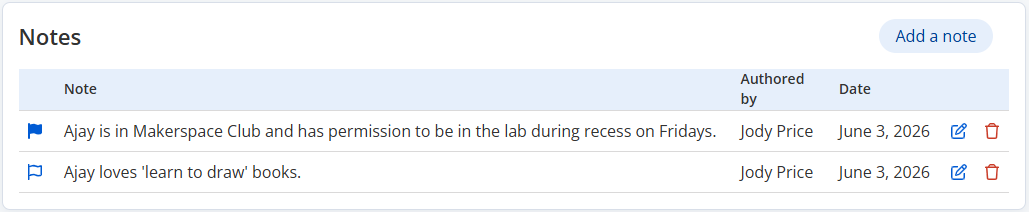
Next to a note, you can:
- Click Movto flag a note as important; click to clear the flag.
- Click to edit the note.
- Click to delete the note.
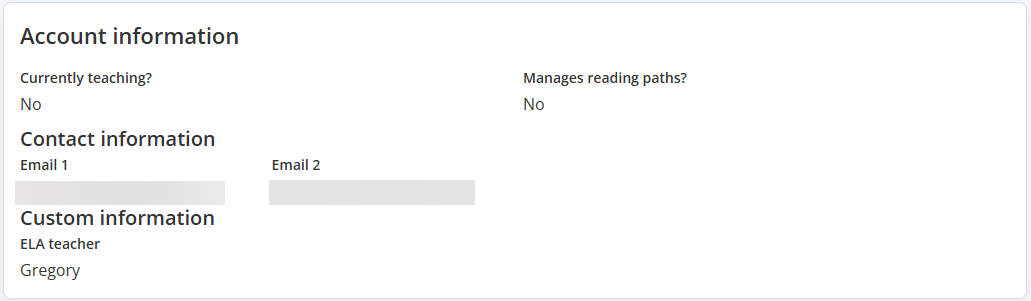
Account information
This section includes additional account information, including:
- Currently teaching? (Resource Manager)
- Contact information
- Custom information from user-defined fields