Approve hold/ILL requests
If your patrons have permissions to submit hold or interlibrary loan (ILL) requests in Destiny, you must approve them before the material can be processed. Use the following steps to approve a request made by a patron at your school.
- Select Circulation > Holds/ILL > View Requests.
.
Note: You can also select Notifications
 > Processing Needed in the primary navigation bar. If you only have hold/ILL requests to process, the View Requests page opens. If you have multiple types of requests that need processing, the Processing Needed page appears. Next to Hold/ILL Requests to process, click View.
 -
Do one of the following (depending on whether you enabled the new View Requests page):
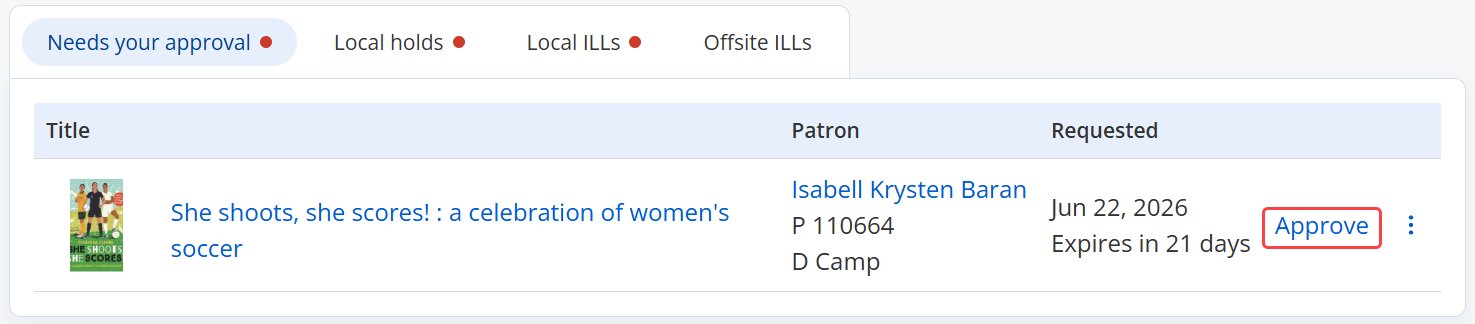
- From the new View Requests page: From the Needs your approval tab, next to the request you want to approve, click Approve.
- From the previous View Requests page: In the Unapproved Requests section, next to the request you want to approve, click Unapproved.

- From the new View Requests page: From the Needs your approval tab, next to the request you want to approve, click Approve.
-
To choose a title with available local and/or offsite copies, do one of the following:
- To select a local copy, if available, select Place hold at.
- To select an offsite copy, under Place ILL at, select which school you want to submit the request to.
Notes:
- If you select Automatically fulfill request, Destiny asks a randomly selected site to fulfill your request. If that site denies the request, Destiny asks the other libraries in turn, until your request is approved.
- If the Destiny Administrator has enabled district-defined ILLs but did not allow librarians to choose the site for the ILL request, the only available option is Automatically fulfill request.
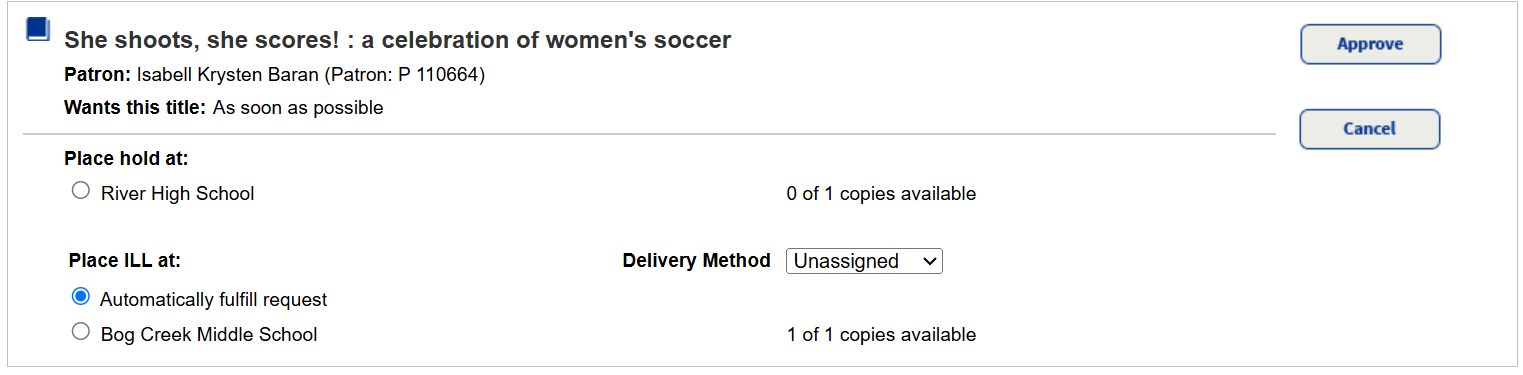
- From the Delivery Method drop-down, select how you want the item sent to the requesting patron.
Note: If the Destiny Administrator has enabled district-defined ILLs, the Delivery Method drop-down is not available. - Click Approve.
The lending library can see and edit the expiration date from the Holds on Title page. Once the lending library begins to process the request, the expiration date is void.
The request appears in the following areas of the View Requests page:
- When you approve a hold request:
- The request moves to the Local Holds tab (in the new version of the View Requests page) or the Local Materials Pending section (in the original version of the View Requests page) until its ready-reserve date.
- When the status changes to Pull Copy (in the new version of the View Requests page) or it moves to the Local Materials to be Pulled section (in the original version of the View Requests page), you can pull the copy.
- Once pulled, the status changes to Ready to check out (in the new version of the View Requests page) or it moves to the Local Materials Ready for Patron section (in the original version of the View Requests page).
- When you approve an ILL request:
- The request moves to the
Local ILLs tab
(in the new version of the View Requests page) or
theILL Requests - To be filled by other sites
section (in the original version of the View Requests page) for the borrowing site, with a status of Pending. - The lending library then receives the new request.
Note: For instructions on the ILL process, see Fulfill ILL requests – new look or Fullfill ILL requests – previous look.
- The request moves to the